


 Manufacturers
ALCATEL-LUCENT 90-2904-01

Description
2902 R1 90-240V DT BSYS
Part Number
90-2904-01
Price
Request Quote
Manufacturer
ALCATEL-LUCENT
Lead Time
Request Quote
Category
None
Datasheet


Extracted Text
2902 MainStreet
Network Termination Unit | Release 1.0 H
TECHNICAL PRACTICES
Alcatel assumes no responsibility for the accuracy of the information presented, which is subject to change without notice.
Alcatel, the Alcatel logo, MainStreet, and Newbridge are registered trademarks of Alcatel. All other trademarks are the property
of their respective owners.
Copyright 2002 Alcatel.
All rights reserved.
Disclaimers
Alcatel products are intended for commercial uses. Without the appropriate network design engineering, they must not be sold,
licensed or otherwise distributed for use in any hazardous environments requiring fail-safe performance, such as in the operation
of nuclear facilities, aircraft navigation or communication systems, air traffic control, direct life-support machines, or weapons
systems, in which the failure of products could lead directly to death, personal injury, or severe physical or environmental
damage. The customer hereby agrees that the use, sale, licence or other distribution of the products for any such application
without the prior written consent of Alcatel, shall be at the customer's sole risk. The customer hereby agrees to defend and hold
Alcatel harmless from any claims for loss, cost, damage, expense or liability that may arise out of or in connection with the use,
sale, licence or other distribution of the products in such applications.
This document may contain information regarding the use and installation of non-Alcatel products. Please note that this
information is provided as a courtesy to assist you. While Alcatel tries to ensure that this information accurately reflects
information provided by the supplier, please refer to the materials provided with any non-Alcatel product and contact the
supplier for confirmation. Alcatel assumes no responsibility or liability for incorrect or incomplete information provided about
non-Alcatel products.
Alcatel has made reasonable efforts to ensure that the 2902 MainStreet Network Termination Unit, Release 1.0, complies in all
material respects with the "Referenced Detailed Functional Specification for Newbridge Product Date Compliance" (for Load H
and beyond). To obtain this document and other information related to Year 2000 Date Compliance, visit the Alcatel Year 2000
Date Compliance website at the URL:
http://www.cid.alcatel.com/year2000/index.html
However, this does not constitute a representation or warranty. The warranties provided for Alcatel products, if any, are set forth
in contractual documentation entered into by Alcatel and its customers.
This document was originally written in English. If there is any conflict or inconsistency between the English version and any
other version of a document, the English version shall prevail.
PRINTED ON
RECYCLED PAPER
Preface
This document describes the technical practices for the 2902 MainStreet Network
Termination Unit, Release 1, software generic 82211. It includes the following
volumes.
• Installation describes how to install and ground a 2902 MainStreet system,
connect it to data equipment, primary rate links and node management
equipment, and how to power it up.
• Configuration provides the instructions on how to configure the node, its modules
and its connections.
• Maintenance explains maintenance functions and how to perform them.
• The glossary expands or defines acronyms and abbreviations.
• The index lists entries for Installation, Configuration and Maintenance.
Some systems do not include all the components or support all the features described
in this documentation. The components and features supported depend on the
components and system you have ordered and the system software generic release.
Conventions
This section describes the text conventions used throughout this document.
2902 MainStreet Technical Practices iii
May 2002 90-2906-01
Preface
Special information
The following conventions are used to draw your attention to special information.
Danger — Danger means that the described activity or situation may
cause personal injury.
Warning — Warning means that the described activity or situation
may or will cause equipment damage.
Caution — Caution means that the described activity or situation
may or will cause service interruption.
Note — Notes provide supplementary information.
Procedure 1 Step procedure conventions
Step procedures provide instructions to perform a task. Step procedures may consist of
options and substeps. The following example outlines step procedure conventions.
1 Steps are denoted by arabic numerals and describe actions that must be performed.
Complete each step in order. This step has substeps.
i Substeps are denoted by roman numerals and detail the actions involved in a
complex step. Complete each substep in order.
ii At least two substeps appear.
2 This step has options.
a Options are denoted by letters and are conditional actions that depend on your
system requirements. Perform only the applicable option.
i Options may contain substeps.
ii At least two substeps appear.
b At least two options appear.
iv 2902 MainStreet Technical Practices
90-2906-01 May 2002
Mandatory regulations
The sections that follow outline the mandatory regulations governing the installation
and operation of the 2902 MainStreet Network Termination Unit. Adherence to these
instructions is necessary to ensure regulatory compliance.
2902 MainStreet Technical Practices v
May 2002 90-2906-01
Mandatory regulations
General requirements
Product safety
This equipment must be configured only with those assemblies specified in the
technical practices and must be mounted in the locations specified.
Danger — There is a danger of explosion if the battery used in this
device is incorrectly replaced. Do not attempt battery replacement.
Return the equipment to your supplier for servicing when or if a
battery fault is suspected to be the cause of the equipment failure.
Where the law prohibits, do not discard the battery, or the equipment
with the battery; return it to your supplier for proper disposal.
The battery may present a fire or chemical burn hazard if mishandled.
Do not recharge, disassemble, heat above 100°C (212°F) or
incinerate.
Warning 1 — This unit contains no user-serviceable parts. Refer
servicing to qualified personnel.
Warning 2 — This equipment is Class I type and must be
permanently earthed for protection and for functional purposes. For
safe operation and servicing, the ac outlet must be installed near the
equipment and must be readily accessible. Use the appropriate ac
power cord and plug, as required by national standards.
Warning 3 — The equipment must be earthed. Where protection of
the user relies on a protective earth derived from a plug (for example,
the ac mains plug on the 2902 MainStreet unit), the connection to the
public network must be unplugged before the earth is disconnected.
The connection to the network must not be hard-wired.
Warning 4 — The power supply does not contain any
field-serviceable parts. Return it to the manufacturer for servicing.
Warning 5 — The unit uses a slow-blow type fuse with a 2 A, 250 V
rating (Sheet No V & Symbol T as per IEC60127). To ensure
continued fire protection, the replacement fuse must have the same
specifications as the original fuse.
Caution — To prevent accidental shorting of the modules, they must
be correctly aligned between the guides before insertion.
Prevention of unauthorized access
The 2902 MainStreet system is intended to be accessible only to authorized
personnel. This apparatus must be installed in a restricted access location or similar
environment, so that unauthorized user access is prevented.
vi 2902 MainStreet Technical Practices
90-2906-01 May 2002
Mandatory regulations
Earths
The 2902 MainStreet system has three types of earth:
• telecom safety earth (also known as functional earth)
• protective earth
• EDG (energy dumping ground)
The telecom safety earth connection is through pins designated as signal ground. The
telecom safety earth connector is located on the rear panel of the unit. See section 4.1
for specific instructions.
A green- and yellow-colored earth wire must be connected from the site equivalent
of the ac earth in accordance with IEEE Wiring Regulations (16th edition) and
HD384. This connection is made to the protective earth ground stud located on the
rear panel of the unit; see section 4.1 for specific instructions. The protective earth is
also carried by the mains plug and socket (for ac systems only).
The EDG connection is located on the rear panel of the unit.
The wire used for telecom safety earth, protective earth and EDG should be a
2
minimum of 1.5 mm (AWG 16), green and yellow in color, and of sufficient length
to connect the building earth point to the unit. See section 4.1 for specific
instructions.
Equipment interconnection points
The interconnection points are defined as Safety Extra Low Voltage (SELV) (all
connectors on rear panel, except P1 and P2 optical connectors).
Connect SELV circuits on this equipment only to other circuits complying with the
requirements of SELV circuits as defined in CSA C22.2 No 60950, UL60950,
EN60950, AS/NZS 3260 and IEC60950.
Laser interface
The 2902 MainStreet unit uses a fiber-optic communications method and is a CLASS
1 LASER PRODUCT. Only trained, qualified service personnel thoroughly familiar
with laser radiation hazards should install or remove the fiber-optic cables and cards
in this system.
Electromagnetic compatibility
EMC compliance requires the use of:
• ferrite beads on all interface cables
• screened interface cables for Class B compliance
All Alcatel cables are shipped with the necessary special accessories required for
regulatory compliance.
2902 MainStreet Technical Practices vii
May 2002 90-2906-01
Mandatory regulations
Install the appropriate ferrite beads as indicated in Table 1, and use shielded cables
for Class B installations. Ferrite beads must be attached at both ends of the cable, as
close as possible to the connector headshell, and secured with tie wraps. In addition,
the appropriate size must be selected to fit the cable diameter (see Figure 1).
Table 1 Ferrite beads for cables
Commercial part number Cable diameter
Steward 28A2025-0A2 5.08 to 6.35 mm
Steward 28A2029-0A2 7.62 to 9.91 mm
Steward 28A2024-0A2 9.53 to 12.70 mm
Figure 1 Ferrite beads and tie wraps on cables
Connector Cable ties Cable ties Connector
Ferrite bead Ferrite bead
16521
Product certification
Note — Some products described in this manual may not comply
with the requirements of all markets where this product is sold, and
may only be placed on the market and installed where appropriately
certified to local requirements.
viii 2902 MainStreet Technical Practices
90-2906-01 May 2002
Mandatory regulations
European regulations
The unit has been CE-marked in accordance with the requirements of European
Directive 1999/5/EC, the Radio and Telecommunications Terminal Equipment
Directive.
This product complies with the requirements of European Directive 73/23/ECC,
89/336/ECC and 91/263/ECC.
See the “Product safety” and “Electromagnetic compatibility” sections in “General
requirements” for installation requirements for regulatory approvals.
Telecoms
The E1 primary interface card (120 Ω) meets the requirements of European Directive
91/263/EEC.
United Kingdom regulations
This apparatus is intended to be accessible only to authorized personnel. This
apparatus must be installed in a locked room or similar environment, such that
unauthorized user access is prevented. Failure to prevent such user access will
invalidate any approval given to this apparatus.
Power supply cord wiring
The instructions for power supply cord and plug wiring are no longer mandatory. If
this information is required, consult the “Australian regulations” section for details,
since both countries have identical power supply cord and plug wiring requirements.
Norway regulations
Apparatus maa tilkobles jordet stikkontakt. Jordet Stikkontakt skal benyttes naar
apparatet tilkobles datanett.
The equipment must be connected to an earthed mains socket-outlet. An earthed
mains socket-outlet must be used when the equipment is connected to a data network.
Sweden regulations
Apparaten skall anslutas till jordat uttag nar den anslutas till ett natverk.
The product should be connected to a mains socket-outlet with earthing contact.
Switzerland regulations
The mains plug must comply with SEV/ASE 1011.
2902 MainStreet Technical Practices ix
May 2002 90-2906-01
Mandatory regulations
Australian regulations
Power supply cord wiring
The cores in this mains lead are colored in accordance with the following code:
• green and yellow: earth
• blue: neutral
• brown: live
As the colors of the cores in the mains lead of this equipment may not correspond
with the colored markings identifying the terminals in the plug, proceed as follows
if power supply cord rewiring is required.
• The core that is colored green and yellow must be connected to the terminal in the
plug that is marked with the letter E or by the earth symbol, or colored green and
yellow.
• The core that is colored blue must be connected to the terminal that is marked
with the letter N or colored black.
• The core that is colored brown must be connected to the terminal that is marked
with the letter L or colored red.
Warning — This equipment must be earthed.
x 2902 MainStreet Technical Practices
90-2906-01 May 2002
Contents
Preface
Mandatory regulations
1 — Introduction 1-1
1.1 Product overview ..............................................................................................1-2
1.2 Physical components ........................................................................................1-3
1.3 HDSL LIM overview .......................................................................................... 1-6
1.4 Optical LIM overview ........................................................................................ 1-8
1.5 Site selection ....................................................................................................1-9
1.6 Installation summary .......................................................................................1-11
1.7 Installation tools and hardware required ......................................................... 1-11
2 — Unpacking and inspecting the shipment 2-1
2.1 Antistatic precautions ........................................................................................2-2
2.2 Unpacking and inspecting the shipment ........................................................... 2-2
2.3 Performing a startup test .................................................................................. 2-4
2.4 Repacking the shipment ................................................................................... 2-4
3 — Mounting the unit 3-1
3.1 Setting up the unit on a desk ............................................................................ 3-2
3.2 Mounting the unit in a rack ................................................................................ 3-2
3.3 Mounting the unit in a slide assembly ............................................................... 3-3
2902 MainStreet Technical Practices xi
May 2002 90-2906-01
Contents
4 — Ground and power connections 4-1
4.1 Ground connections ..........................................................................................4-2
4.2 Power connections ...........................................................................................4-4
4.3 Securing slide assembly cable connections ..................................................... 4-4
4.4 Startup diagnostics ...........................................................................................4-6
5 — Installing and removing modules 5-1
5.1 Control card modules ........................................................................................5-2
5.2 Opening the unit ............................................................................................... 5-2
5.3 Installing and removing primary rate modules .................................................. 5-3
5.4 Installing and removing data interface modules ............................................. 5-10
5.5 Installing and removing personality modules .................................................. 5-11
5.6 Replacing EPROMs ........................................................................................5-12
6 — Connecting to the network 6-1
6.1 Primary rate connections .................................................................................. 6-2
7 — Connecting to data devices 7-1
7.1 Data circuit connections ....................................................................................7-2
7.2 Assembling an adapter for EIA/TIA-232 connections ....................................... 7-9
7.3 DB25-to-M34 cable pin and signal assignment .............................................. 7-20
8 — Connecting node management equipment 8-1
8.1 Node management equipment connections ..................................................... 8-2
9 — Connecting to external alarm equipment 9-1
9.1 External alarm connections .............................................................................. 9-2
10 — Node management 10-1
10.1 Node management overview .......................................................................... 10-2
10.2 Logging in to the NMTI ................................................................................... 10-2
10.3 NMTI screen display ....................................................................................... 10-4
10.4 NMTI main menus ..........................................................................................10-6
10.5 Softkey menus ................................................................................................10-7
10.6 Logging out of the NMTI ................................................................................. 10-9
11 — Node parameters 11-1
11.1 System serial port parameters ........................................................................ 11-2
11.2 Date and time ................................................................................................. 11-6
11.3 Node number and node name ........................................................................ 11-7
11.4 Network Operations Center number ............................................................... 11-8
11.5 Access levels ..................................................................................................11-9
11.6 Passwords ....................................................................................................11-13
11.7 Viewing node parameters .............................................................................11-14
xii 2902 MainStreet Technical Practices
90-2906-01 May 2002
Contents
12 — Module position and circuit configuration 12-1
12.1 Module position and circuit identifiers ............................................................. 12-2
12.2 Module position configuration ......................................................................... 12-3
12.3 Module position displays ................................................................................. 12-4
12.4 Naming a module position .............................................................................. 12-8
12.5 Naming a circuit .............................................................................................. 12-8
12.6 Quick circuit configurations ............................................................................. 12-8
12.7 Viewing circuit status ......................................................................................12-9
13 — System timing and timing sources 13-1
13.1 System timing .................................................................................................13-2
13.2 Timing sources ...............................................................................................13-3
13.3 Types of synchronization ................................................................................ 13-6
13.4 Class number ..................................................................................................13-7
13.5 Failure threshold .............................................................................................13-8
13.6 Recovery condition .........................................................................................13-9
13.7 Intra- and inter-sector links .......................................................................... 13-10
13.8 Displaying the network configuration ........................................................... 13-12
14 — CPSS 14-1
14.1 CPSS overview ...............................................................................................14-2
14.2 CPSS channel connections ............................................................................14-2
15 — E1 module operating parameters 15-1
15.1 E1 module overview ....................................................................................... 15-2
15.2 Network connectors ........................................................................................15-3
15.3 E1 framing format ........................................................................................... 15-4
15.4 Signal earthing (E1 G.703 LIM only) ............................................................... 15-4
15.5 Master/slave operation (E1 HDSL and Optical LIMs only) ............................. 15-6
15.6 Trunk conditioning ..........................................................................................15-7
15.7 Fault classes .................................................................................................15-12
15.8 Alarm declaration and clearing times ............................................................ 15-13
15.9 E1 statistics ...................................................................................................15-14
16 — E1 circuit operating parameters 16-1
16.1 E1 signaling type ............................................................................................16-2
16.2 E1 fault signaling ............................................................................................ 16-2
17 — DNIC and 2B1Q modules 17-1
17.1 Understanding DNIC and 2B1Q modules ....................................................... 17-2
17.2 DNIC and 2B1Q circuit configuration and operating parameters .................... 17-2
17.3 Device mode ...................................................................................................17-3
17.4 Device gender .................................................................................................17-4
17.5 Duplex method ............................................................................................... 17-5
17.6 RTS/CTS delay ...............................................................................................17-5
17.7 Control signals ................................................................................................17-6
17.8 Data structure (asynchronous only) ................................................................ 17-7
2902 MainStreet Technical Practices xiii
May 2002 90-2906-01
Contents
17.9 Clocking (synchronous only) ........................................................................... 17-9
17.10 Multidrop data bridge .................................................................................... 17-12
17.11 Super-rate configuration for DNIC or 2B1Q modules ................................... 17-13
17.12 Loss-of-synchronization debounce time (DNIC only) ................................... 17-14
18 — RS-232 DCM 18-1
18.1 Understanding the RS-232 DCM .................................................................... 18-2
18.2 RS-232 DCM circuit operating parameters .................................................... 18-2
18.3 Device mode ...................................................................................................18-3
18.4 Device gender .................................................................................................18-3
18.5 Full duplex ......................................................................................................18-4
18.6 RTS/CTS delay ...............................................................................................18-4
18.7 Control signals ................................................................................................18-5
18.8 Data structure (asynchronous only) ................................................................ 18-6
18.9 Clocking (synchronous only) ........................................................................... 18-7
18.10 Multidrop data bridge ...................................................................................... 18-9
19 — X.21 and V.35 DCMs 19-1
19.1 Understanding X.21 and V.35 DCMs .............................................................. 19-2
19.2 X.21 and V.35 circuit operating parameters ................................................... 19-2
19.3 Device mode ...................................................................................................19-4
19.4 Device gender .................................................................................................19-4
19.5 Duplex method ................................................................................................19-5
19.6 RTS/CTS delay ...............................................................................................19-6
19.7 Control signals ................................................................................................19-7
19.8 Data structure (asynchronous only) ................................................................ 19-8
19.9 Clocking (synchronous only) ........................................................................... 19-9
19.10 Multidrop data bridge .................................................................................... 19-12
19.11 Super-rate configuration for the X.21 and V.35 DCMs ................................. 19-13
20 — Codirectional DCM 20-1
20.1 Understanding the Codirectional DCM ........................................................... 20-2
20.2 Codirectional DCM Module and circuit parameters ........................................ 20-2
20.3 Trunk conditioning ..........................................................................................20-3
20.4 Alarm times .....................................................................................................20-3
20.5 8 kHz timing ................................................................................................... 20-4
20.6 All Ones alarm indication signal ...................................................................... 20-4
21 — Transparent rate adaption 21-1
21.1 Rate adaption overview ..................................................................................21-2
21.2 Transparent rate adaption overview ............................................................... 21-2
21.3 Transport bandwidth .......................................................................................21-3
21.4 Transport position ...........................................................................................21-5
22 — HCM rate adaption 22-1
22.1 Rate adaption overview ..................................................................................22-2
22.2 HCM rate adaption overview .......................................................................... 22-2
xiv 2902 MainStreet Technical Practices
90-2906-01 May 2002
Contents
22.3 Transport bandwidth .......................................................................................22-3
22.4 Transport position ...........................................................................................22-5
22.5 Signaling and the signaling bit stream ............................................................ 22-5
22.6 Interface speed ...............................................................................................22-6
22.7 Data position ...................................................................................................22-8
23 — Cross-connecting circuits 23-1
23.1 Types of cross-connections ............................................................................ 23-2
23.2 Simple connections .........................................................................................23-2
23.3 Connecting super-rate circuits ........................................................................ 23-4
23.4 Circuit connections display .............................................................................23-5
23.5 Protecting connections (RAPID protection switching) .................................... 23-5
23.6 Disconnecting connections ...........................................................................23-10
24 — Visual indicators 24-1
24.1 LEDs ...............................................................................................................24-2
24.2 Front panel LEDs ............................................................................................ 24-2
24.3 Rear panel LEDs ............................................................................................ 24-4
24.4 Interface module LEDs ................................................................................... 24-6
25 — Alarms 25-1
25.1 Alarms and alarm queues ............................................................................... 25-2
25.2 Viewing alarm queues ....................................................................................25-4
25.3 Acknowledging alarms ....................................................................................25-6
25.4 Deleting alarms ...............................................................................................25-7
25.5 Reclassifying configurable alarms ................................................................. 25-7
25.6 Logging alarms ...............................................................................................25-9
25.7 External alarms .............................................................................................25-10
26 — System diagnostics 26-1
26.1 Diagnostic tests ..............................................................................................26-2
26.2 Background diagnostics ..................................................................................26-3
26.3 Directed diagnostics .......................................................................................26-4
26.4 Viewing diagnostics ........................................................................................26-5
26.5 Busy-out circuits .............................................................................................26-6
26.6 Signaling leads ...............................................................................................26-7
26.7 Displaying module and Control card maintenance information .................... 26-10
26.8 Resetting a module or the Control card ........................................................ 26-10
27 — Loopbacks 27-1
27.1 Using loopbacks .............................................................................................27-2
27.2 2B1Q circuit loopbacks ...................................................................................27-3
27.3 DNIC circuit loopbacks ...................................................................................27-6
27.4 Data circuit loopbacks ...................................................................................27-11
27.5 Primary rate circuit loopbacks ....................................................................... 27-13
27.6 Primary rate link loopbacks ........................................................................... 27-15
2902 MainStreet Technical Practices xv
May 2002 90-2906-01
Contents
28 — Statistics 28-1
28.1 Synchronization statistics ...............................................................................28-2
28.2 FAS and CRC4 statistics ................................................................................ 28-3
28.3 Codirectional DCM quality statistics ............................................................... 28-7
29 — CPSS maintenance 29-1
29.1 Routing information .........................................................................................29-2
29.2 CPSS grooming ..............................................................................................29-5
30 — Database management 30-1
30.1 Backing up, verifying, and restoring the configuration database .................... 30-2
30.2 Viewing and resetting the nonvolatile memory ............................................... 30-5
31 — Hardware maintenance procedures 31-1
31.1 Measuring the power rails ............................................................................... 31-2
31.2 Testing and replacing the fuse ........................................................................ 31-3
32 — Primary rate link bypass 32-1
32.1 Initiating a primary rate link bypass ................................................................ 32-2
Glossary
lndex
xvi 2902 MainStreet Technical Practices
90-2906-01 May 2002
1 — Introduction
1.1 Product overview 1-2
1.2 Physical components 1-3
1.3 HDSL LIM overview 1-6
1.4 Optical LIM overview 1-8
1.5 Site selection 1-9
1.6 Installation summary 1-11
1.7 Installation tools and hardware required 1-11
2902 MainStreet Technical Practices 1-1
May 2002 90-2906-01
System Status Out of Sync 2
Event Status Out of Sync 1
Network Termination Unit
Power Processor
2902 MainStreet
1 — Introduction
1.1 Product overview
The 2902 MainStreet Network Termination Unit is a high-speed NTU for data
devices. The 2902 MainStreet unit also provides CEPT voice bypass capability. It
supports two E1 primary rate interfaces and two data interface modules. HDSL
technology allows connection to E1 lines using twisted copper pairs, without
repeaters.
The 2902 MainStreet unit gives customers access to public and private switched
networks. It can be used in point-to-point, or drop and insert configurations. The unit
also features circuit protection switching, bypass operation, subrate and super-rate
connections, system diagnostics, statistics collection, line and circuit maintenance
testing, alarm collection, and database management functions.
The E1 HDSL and E1 Optical LIMs allow the 2902 MainStreet unit to serve as a
high-speed NTU, providing low-cost, high-speed X.21 or V.35 circuits for LAN
interconnection. E1 G.703 LIMs can also provide high-speed connections to an E1
network. Additionally, an E1 G.703 LIM can be used as a tributary connection to a
PBX, allowing voice bypass connections to an E1 HDSL, E1 Optical, or another E1
G.703 LIM.
Figure 1-1 shows the exterior of a desktop unit. The unit can be placed on a desktop
or, with the appropriate hardware, adapted for a rack. Physical connections to
primary rate lines can be made through BNC or RJ45 connectors.
Figure 1-1 2902 MainStreet Network Termination Unit
8827
The system uses customer-installed modules to connect to E1 lines and data devices.
E1 lines connect to a 2902 MainStreet unit through the following line interface
modules:
• E1 G.703 LIM
• E1 HDSL LIM
• E1 HDSL LIM2
• E1 Optical LIM
1-2 2902 MainStreet Technical Practices
90-2906-01 May 2002
Loop Status
U 1 2
Display
Rx-1 Tx-1 Rx-2 Tx-2 Line-1 Line-2 Modem Terminal Alarm
Slot 1
Slot 2
P1
P2
I
O
EDG Sig/Gnd
1 — Introduction
Data devices connect to a 2902 MainStreet unit through the following data interface
modules:
• RS-232 DCM
• V.35 DCM
• X.21 DCM
• Codirectional DCM
• DNIC module
• 2B1Q module
1.2 Physical components
The 2902 MainStreet system has three major physical components:
• chassis
• power supply
• Control card
Figure 1-2 identifies the components for the unit.
Figure 1-2 2902 MainStreet unit (interior, rear view)
Data interface modules
EDG
position (1) position (2)
and Sig/Gnd
Control card
Primary rate
interface
P2 (P2)
modules
(P1)
P1
Slot 2
Personality
modules
Power
Slot 1
supply
Power
Tx-1
receptacle
Rx-1
Protective
Rx-2 Tx-2
Alarm earth
Modem
Power
Loopback
Line-2 Fuse
switch
LEDs
holder
Line-1
Status LED
Seven-segment
Terminal
display
9058
2902 MainStreet Technical Practices 1-3
May 2002 90-2906-01
1 — Introduction
Chassis
The chassis acts as a mechanical base for the Control card, power supply and
connectors. The top is attached with screws and, once removed, provides access to
the Control card, its modules and the power supply.
The front panel has LEDs that indicate the status of the power supply, the alarms, the
processor and the primary rate links. The rear panel has LEDs that indicate the status
of the Control card and loopbacks, and a seven-segment display that indicates the
number of major alarms. All power and signal connections are made at the rear panel.
Power supply
The self-contained power supply is mounted inside the unit, above the Control card.
It receives its power connection from the power connector module, which contains
an EMI filter, fuse holder and power switch.
Control card
The Control card is a multilayered printed circuit board that performs functions
common to the entire system. It contains the system software and configuration
memory, and supports up to two E1 primary rate LIMs and up to two data interface
modules. Figure 1-3 shows the location of the modules.
The Control card provides connectors for network interfaces, data devices, serial
ports and external alarm devices. It also supports several LED indicators that can be
seen from the back panel (see Figure 1-2).
Figure 1-3 Control card modules
LIM (P1) LIM (P2) EPROMs 1 2 3 4
Interface
module
(position 2)
Interface
module
(position 1)
Personality
modules
(Slot 2/Slot 1)
Jumper blocks Jumper blocks
(J37, J40) (J41, J44)
8840
1-4 2902 MainStreet Technical Practices
90-2906-01 May 2002
1 — Introduction
E1 primary rate line interface modules
A LIM provides the line interface to a primary rate line. It contains the drivers and
receivers, coupling transformers, and fuses needed for line buffering, impedance
matching, isolation and protection. It also provides transmit and receive shield
grounding.
There are positions for two E1 primary rate LIMs on the Control card, labeled P1 and
P2 in Figure 1-3. An E1 module must be installed to enable a network port on the
2902 MainStreet system. The unit supports four types of LIMs:
• E1 G.703 LIM
• E1 HDSL LIM
• E1 HDSL LIM2
• E1 Optical LIM
There are two E1 G.703 LIM variants—one for 75 Ω network termination and the
other for 120 Ω termination. The 75 Ω G.703 LIM connects to the network through
BNC connectors; the 120 Ω G.703 and HDSL LIMs connect through RJ45
connectors. The E1 Optical LIM connects to the network through FC_PC
connectors.
You can install any combination of primary rate LIMs on the Control card. One LIM
is required for each E1 link.
There are two jumper blocks for each primary rate LIM on the Control card. The
jumpers are set to specify the termination impedance of each primary rate line: 75 Ω
or 120 Ω termination.
Data interface modules
There are locations for two data interface modules on the Control card, as shown in
Figure 1-3.
Physical position 1 on the Control card maps to logical position M01 on the NMTI,
while physical position 2 on the Control card maps to logical position M09 on the
NMTI. Logical positions M02 to M08, and M10 to M16, on the NMTI cannot be
configured and can only be reserved. All NMTI operations pertaining to physical
position 2 are performed through logical position M09. See chapter 12 in
Configuration for more information.
All data modules except the Codirectional DCM support synchronous and
asynchronous transmissions. The Codirectional DCM supports local G.703 64 kb/s
NTU connections.
External device connectors (Slot 1 and Slot 2)
Slot 1 and Slot 2 connectors on the Control card provide the access points for
user-changeable adapter modules (called personality modules). Each personality
module presents the appropriate connector to the external data device and transfers
signals between its DCM and the device. There is a personality module for each
DCM. Slot 1 and Slot 2 connectors are stacked, with Slot 2 above Slot 1.
2902 MainStreet Technical Practices 1-5
May 2002 90-2906-01
1 — Introduction
The personality module in Slot 1 connects to the data interface module in physical
position 1 (NMTI logical position M01). The personality module in Slot 2 connects
to physical position 2 (NMTI logical position M09).
Primary rate link connectors (Rx-1, Tx-1, Rx-2, Tx-2, Line-1, Line-2, P1 and P2)
The BNC connectors labeled Rx-1, Tx-1, Rx-2 and Tx-2 are for 75 Ω E1 network
termination. Rx-1 and Tx-1 connect to LIM P1; Rx-2 and Tx-2 connect to LIM P2.
The RJ45 connectors labeled Line-1 and Line-2 are for 120 Ω E1 or HDSL network
termination. Line-1 connects to LIM P1; Line-2 connects to LIM P2.
The FC_PC connectors labeled P1 and P2 are for optical network connections.
P1 connects to LIM P1; P2 connects to LIM P2.
Serial port connectors (Modem and Terminal)
The two RJ45 connectors labeled Modem and Terminal are EIA/TIA-232 serial port
connectors. The Terminal connector is configured for a direct connection to node
management equipment. The Modem connector is configured for an indirect (or
remote) connection to node management equipment through a modem.
External alarm connector (Alarm)
The connector labeled Alarm is an RJ11 connector. Through the Alarm connector,
the 2902 MainStreet system can monitor external equipment for alarm conditions
and can signal an alarm condition to an indicating device (such as a light or buzzer).
LED indicators
A Control card status LED, a seven-segment display, and a group of four loopback
LEDs are mounted on the edge of the Control card. These provide information about
card and module status and indicate activated loopbacks.
1.3 HDSL LIM overview
HDSL is a technology that provides transport of E1 service over two pairs of
unconditioned copper loops, allowing service providers and private network users to
take advantage of their installed base of copper facilities.
HDSL delivers bidirectional (full-duplex) 2.048 Mb/s transmission capability over
two non-loaded, two-wire metallic pairs. This eliminates the need for additional
conditioned lines and repeaters to achieve similar distances.
The E1 HDSL LIM and E1 HDSL LIM2 can help to significantly reduce carrier
provisioning cost, improve service response times and enhance transmission quality.
Line conditioning is simplified, since bridge taps and mixed cable gauge concerns
are eliminated. Also, binder separation is no longer required.
The E1 HDSL LIMs pass all defined ETSI loops. For example, the LIMs can achieve
a maximum reach of 3700 m (12 139 ft) with zero noise using 0.4 mm wire, or
2850 m (9350 ft) with 0 dB ETSI noise. Impairments such as noise, cross-talk,
bridge taps, and splices can affect the quality of the signal and loop length.
1-6 2902 MainStreet Technical Practices
90-2906-01 May 2002
1 — Introduction
The 2902 MainStreet system supports two E1 HDSL LIMs, each providing separate
HDSL transmission. A module is used at both ends of an E1 HDSL link to increase
the distance between midspan repeaters in a carrier service area. Each loop carries
16 DS0s as well as overhead information. The modules use full duplex, 2B1Q line
coding and continuous adaptive echo cancellation to improve loop reach and BER
(bit error rate) performance.
Note — The E1 HDSL LIM and E1 HDSL LIM2 are not end-to-end
compatible. Both ends of an E1 HDSL link must have the same type
of HDSL LIM installed.
Bidirectional data is transmitted and received on each pair at a rate of 1168 kb/s. The
data from both pairs are combined to form a DS1. The 1168 kb/s rate includes
1024 kb/s of timeslot information and 144 kb/s of HDSL overhead (see Figure 1-4).
Figure 1-4 HDSL technology
HDSL loop 1
30 DS0s E1 E1 E1 E1 30 DS0s
1168 kb/s
HDSL HDSL
interface interface
master 1168 kb/s slave
2.048 2.048
Mb/s Mb/s
HDSL loop 2
7661
The Control card on a 2902 MainStreet system supports E1 HDSL LIMs in the same
way that it supports E1 G.703 LIMs. The E1 HDSL LIMs provide the same service
as the E1 G.703 LIMs, except that they use HDSL technology and do not provide the
monitoring or bypass functions that are available on the E1 LIMs.
Figure 1-5 shows a typical application for E1 HDSL LIMs.
Figure 1-5 Typical E1 HDSL LIM or E1 HDSL LIM2 application
Ethernet LAN
E1 HDSL LIM
or E1 HDSL LIM2
Router
X.21/V.35
3700 m (12 139 ft)
0.4 mm wire, zero noise
X.21/V.35
Slave Master
2902
Video MainStreet
3600 MainStreet
E1
conferencing NTU
Multiservice Bandwidth
Manager
Centrex/PBX
2902 MainStreet Technical Practices 1-7
May 2002 90-2906-01
1 — Introduction
Performance specifications
The E1 HDSL LIM and E1 HDSL LIM2 meet the performance specification for
ETSI ETR 152.
1.4 Optical LIM overview
The E1 Optical LIM converts electrical signals to optical signals. The E1 Optical
LIM supports up to 32 DS0s, with one DS0 (timeslot 0) used for synchronization.
The 31 DS0s available for data transmission provide a bidirectional bandwidth of
2.048 Mb/s over a distance of 15 km (9 mi), using a 1300 nm single-mode fiber.
Full-duplex transmission between two E1 Optical LIMs on separate nodes is
achieved by sending data in one direction at a time, making the E1 Optical LIM
immune to unwanted optical reflections. This method allows a simplex single-mode
cable to be used in a full-duplex application.
The E1 Optical LIM emulates an E1 G.703 LIM; however, the monitor and bypass
modes on the E1 Optical LIM are not supported. The E1 Optical LIM operates
transparently with the node software and has the same configuration and
maintenance functions as the E1 G.703 LIM.
Figure 1-6 shows the E1 Optical LIM in a point-to-point application. Figure 1-7
shows a feeder node application.
Figure 1-6 E1 Optical LIM point-to-point application
2902 MainStreet NTU 2902 MainStreet NTU
DNIC DNIC
Data Data
X.21 X.21
15 km
E1 E1 E1 E1
(9 mi)
G.703 Optical Optical G.703
LIM LIM LIM LIM
Fiber cable
(P2) (P1) (P1) (P2)
Video Video
PBX PBX
10450
1-8 2902 MainStreet Technical Practices
90-2906-01 May 2002
1 — Introduction
Figure 1-7 E1 Optical LIM feeder node application
2902 MainStreet NTU
DNIC
Data
X.21
15 km
(9 mi)
Optical network
E1 E1
Fiber cable
G.703 Optical
LIM LIM
(P2) (P1)
Video
PBX
10451
1.5 Site selection
Observe the site, space, power and grounding requirements that follow to ensure:
• adequate access to equipment
• fault-free operation
• personal safety
Site requirements
Install the unit in an area that meets the following general site requirements:
• clean and dry
• well ventilated
• well illuminated
Table 1-1 lists the specific site requirements.
2902 MainStreet Technical Practices 1-9
May 2002 90-2906-01
1 — Introduction
Table 1-1 Site specifications
Item Specification
Power source Unswitched, separate circuit providing one of the following ranges:
• 90 to 110 V ac (100 V ac +6%/–10%)
• 207 to 253 V ac (230 V ac ±10%)
Temperature Operating: 0° to 40°C (32° to 104°F)
Shipping and storage: –40° to 66°C (–40° to 150°F)
Humidity 5 to 95% relative humidity, non-condensing (a maximum of 32 g of water per
cubic meter of air, or 0.024 lb of water per pound of air)
Altitude Between 60 m (197 ft) below sea level and 1800 m (5905 ft) above sea level
Grounding Cables used for ground (earth) connections should comply to local practice
requirements, and be a minimum of 65/34 stranded (1.5 mm nominal
diameter [16 AWG])
Note — Although this unit has been designed and tested to all
relevant standards of conducted and radiated electromagnetic
interference, it may be affected by strong sources of electromagnetic
radiation in the near field, such as elevators, air conditioners,
photocopiers and facsimile machines.
Space requirements
The 2902 MainStreet unit is two rack units high and designed to be placed
horizontally on a desktop or mounted in a rack. A rack-mounted unit can be in a
fixed, permanent position or in a sliding drawer. The rack must be properly installed
and stable, for example, bolted securely to the floor.
Install the unit where it can be connected easily to primary rate links, data circuits
and a power source.
For mounting instructions, see chapter 3.
Power requirements
The unit is shipped with an ac power supply installed (230 V/50 Hz or 115 V/60 Hz)
and a power cord.
To prevent outages, and to minimize surges and drops in power, the unit must be
connected to an unswitched, separate circuit power source.
Power consumption depends on the number and types of modules installed, and the
input voltage supplied. Power consumption is 14 W for the Control card and
approximately 4 W for each optional module. See Table 1-2 for maximum power
requirements.
1-10 2902 MainStreet Technical Practices
90-2906-01 May 2002
1 — Introduction
Table 1-2 Maximum power requirements
Supplied voltage Minimum voltage Maximum Maximum power
(1)
voltage requirement
100 V ac 90 V ac 110 V ac 42 W
230 V ac 207 V ac 253 V ac 42 W
Note
(1)
Occurs when two data interface modules and two LIMs are used.
Grounding requirements
The chassis must be connected to a building ground point, usually a metal water pipe
or building steel. The cable must be long enough to connect the ground screw on the
rear panel to the building ground point without splicing. Use a cable that is a
minimum of 16 AWG (1.5 mm nominal diameter). A cable that is 10 AWG (2.6 mm
nominal diameter) or 12 AWG (2 mm nominal diameter) is recommended.
For grounding information and instructions, refer to chapter 4.
1.6 Installation summary
Table 1-3 serves as a reference summary for the installation procedures.
Table 1-3 Installation summary
Step Reference
1. Unpack and inspect the components. Chapter 2
2. Mount the unit. Chapter 3
3. Ground the unit. Section 4.1
4. Connect to power and conduct the power-up test. Sections 4.2 and 4.4
5. Install the modules. Chapter 5
6. Connect to the network. Chapter 6
7. Connect the data devices. Chapter 7
8. Connect the node management terminal. Chapter 8
9. Connect the external alarm devices. Chapter 9
10. Switch on the power. Section 4.2
1.7 Installation tools and hardware required
Table 1-4 lists the tools and hardware are required to install a 2902 MainStreet
system (listed by activity). Some tools or hardware may not apply to your particular
installation.
2902 MainStreet Technical Practices 1-11
May 2002 90-2906-01
1 — Introduction
Table 1-4 Installation tools and hardware
Activity Tools and hardware
Assembling • Antistatic wrist strap
• Small slot screwdriver
• #1 and #2 Phillips screwdrivers
Rack-mounting • #2 Phillips screwdriver
• One rack-mount kit (19-inch) available from your supplier (part
number 90-2901-01)
• One rack-mount slide assembly (19-inch or 23-inch) available from
your supplier (part numbers 90-2367-01 and 90-2367-02
respectively)
Grounding • Wire stripper
• Crimp tool
• One ring lug
• Three spade lugs
• Slot screwdriver
• 5/16-inch nut driver
• 10, 12 or 16 AWG cable (2.6, 2.0 or 1.5 mm nominal diameter)
Securing slide assembly • Wire cutter
cables
• Cable ties
Installing modules • #1 and #2 Phillips screwdrivers
• #2 nut driver
• Module extraction tool
• EPROM IC insertion tool
• EPROM IC extraction tool
Connecting primary rate • Adapters (as required)
link
• Cabling (as required)
Connecting data circuit • Personality modules
• Adapters and cabling (as required)
Connecting node • Adapters (as required)
management equipment
• Cabling (as required)
• Node management terminal (VT100-compatible terminal or VT100
(1)
terminal emulator)
Connecting external alarm • RJ11-to-spade lug cable
equipment
• RJ11-to-RJ11 cable
• Distribution box
Note
(1)
If you are using the Craft Interface Node Manager or a 5620 Network Manager for the node
management, consult the Craft Interface Node Manager or 5620 NM documentation for installation
requirements.
1-12 2902 MainStreet Technical Practices
90-2906-01 May 2002
2 — Unpacking and inspecting the
shipment
2.1 Antistatic precautions 2-2
2.2 Unpacking and inspecting the shipment 2-2
2.3 Performing a startup test 2-4
2.4 Repacking the shipment 2-4
2902 MainStreet Technical Practices 2-1
May 2002 90-2906-01
Loop Status
U 1 2
Display
P2
P1
Rx-1 Tx-1 Rx-2 Tx-2 Line-1 Line-2 Modem Terminal Alarm
Slot 1
Slot 2
I
O
EDG Sig/Gnd
2 — Unpacking and inspecting the shipment
2.1 Antistatic precautions
Electronic circuitry is easily damaged by electrostatic discharge. Protect the unit and
its components by wearing a properly grounded antistatic wrist strap throughout the
assembly and installation procedure.
Until the unit is permanently grounded, connect your antistatic wrist strap to a
building ground point, usually a metal water pipe or building steel. Once the unit is
grounded, you may connect the wrist strap to the ground stud on the rear of the unit
(see Figure 2-1).
For information on grounding, see chapter 4.
Warning — To prevent damage due to electrostatic discharge, take
the following precautions when unpacking and assembling the unit.
• Always wear a properly grounded antistatic wrist strap.
• Before handling any electronic component, touch a grounded
metal surface to discharge static from your body.
• Handle modules by the edges only. Do not touch any components
or connectors.
Figure 2-1 Attaching the antistatic strap
Antistatic
wrist strap
8993
2.2 Unpacking and inspecting the shipment
Unpack and assemble the unit on a clean, flat surface such as a workbench or table.
Report any missing or damaged components to your account or technical support
representative.
A part number label is shipped with each module. The label shows the marketing part
number (an 8-digit number starting with 90-) and manufacturing code suffix (a single
letter). The label is designed to be affixed to the configuration record on the side of
the chassis cover.
Figure 2-2 shows where the part number is located on the data module.
2-2 2902 MainStreet Technical Practices
90-2906-01 May 2002
2 — Unpacking and inspecting the shipment
Figure 2-2 Part number label on an interface module
10469
Procedure 2-1 To unpack the shipment and its components
Warning — Observe the antistatic precautions described in section 2.1.
1 Check each package for any sign of damage.
2 Unpack and check each package against your order form and the packing slip to
ensure that you have received all the components.
The basic components are:
• one 2902 MainStreet unit with a Control card, power supply and the latest
software generic
• four plastic feet
• one ac power cord
• one documentation package
Optional items are packed separately, labeled for identification, and include:
• one or two LIMs
• one or two interface modules
• one or two personality modules
• one rack-mount kit (as applicable)
• one rack-mount slide assembly (as applicable)
3 Inspect the system and all the components carefully for obvious signs of damage.
4 Check for a configuration record on the chassis exterior. It has part number labels
(in text and bar code format) for any installed parts.
5 When you install a module, affix its part number label (enclosed with each module)
to the configuration record as follows.
2902 MainStreet Technical Practices 2-3
May 2002 90-2906-01
90-1234-56-B
System Status Out of Sync 2
Event Status Out of Sync 1
Network Termination Unit
Power Processor
2902 MainStreet
2 — Unpacking and inspecting the shipment
a Verify that the marketing part number on the module matches the marketing
part number on the label.
b Affix the label to the appropriate position on the system configuration record
(see Figure 2-3). If you are removing or replacing a module, remove its label
from the system configuration record and keep it with the module.
6 Store the packing material in a clean, dry place for use when the equipment is
moved to another location.
Figure 2-3 System configuration record
System
configuration
record
9131
2.3 Performing a startup test
We recommend that you perform a startup test before installing any LIMs or data
interface modules, making any network or data device connections, or mounting the
2902 MainStreet unit. See section 4.4 for information on startup diagnostics.
Before connecting to an ac power source, you must temporarily ground the unit by
connecting the protective earth terminal (chassis ground) on the rear of the unit to the
building ground.
2.4 Repacking the shipment
Repack the shipment in its original packing material. Observe antistatic precautions.
If the original packing material is not available when you want to move the
equipment, place the components in antistatic bags and wrap them with several
layers of air-cushion material. Place each wrapped component in a suitable container
filled with paper or a similar non-static packing material, such that all items have
minimal movement.
Warning — Static protection of the repackaged system and modules
is mandatory.
2-4 2902 MainStreet Technical Practices
90-2906-01 May 2002
3 — Mounting the unit
3.1 Setting up the unit on a desk 3-2
3.2 Mounting the unit in a rack 3-2
3.3 Mounting the unit in a slide assembly 3-3
2902 MainStreet Technical Practices 3-1
May 2002 90-2906-01
L Lo oo op p Status
Status
U U 1 1 2 2
D Disp ispla lay y
P1 P2
P1 P2
R Rx-1 x-1 Tx-1 Tx-1 RR x-2 x-2 Tx-2 Tx-2 Line-1 Line-1 Line-2 Line-2 M Modem odem Term Terminal inal Alarm Alarm
Slot 1 Slot 1
Slot 2
Slot 2
II
O
O
EDG Sig S/G ig/G nd nd
EDG
3 — Mounting the unit
3.1 Setting up the unit on a desk
The unit is designed to be set on a flat surface, such as a desktop or a table.
If the rubber feet are not attached, place the unit upside down on a flat surface and
attach them. Take care not to scratch the top cover.
Set the unit down where it can be connected to a power source, external devices and
the network.
3.2 Mounting the unit in a rack
The unit can be mounted in a 19-inch rack by first attaching brackets to the unit. For
site requirements, see section 1.5.
Danger — Before installing any rack-mount assembly, secure the
rack to the floor to ensure that it does not tip over.
Procedure 3-1 To mount the unit in a rack
Tools required:
• #2 Phillips screwdriver
• one rack-mount kit (19-inch) available from your supplier (part number
90-2901-01)
1 Position the brackets and attach them to the unit with six #8 flathead screws
(supplied), as shown in Figure 3-1.
Figure 3-1 Attaching the brackets to the unit
8834
2 Attach the shelf to the rack with the four panhead screws (supplied), as shown in
Figure 3-2.
3-2 2902 MainStreet Technical Practices
90-2906-01 May 2002
3 — Mounting the unit
Figure 3-2 Attaching the unit to the rack
Power Processor
2902 MainStreet
Network Termination Unit Event Status Out of Sync 1
System Status Out of Sync 2
Mounting Mounting
screws screws
8835
3.3 Mounting the unit in a slide assembly
The unit can be rack-mounted in a 19- or 23-inch slide assembly.
The rack-mount slide assembly contains two parts: a u-shaped slide bracket and a
rack-mount shelf (see Figure 3-3). When shipped, the slide bracket is installed in the
shelf. Before installing the unit, you must remove the bracket from the shelf.
The general procedure to mount the unit in a slide assembly is as follows.
1 Install the slide assembly in a rack.
2 Attach the unit to the slide bracket.
3 Install the slide bracket in the rack.
Figure 3-3 Slide assembly
Rack-mount
shelf
Slide
bracket
8965
2902 MainStreet Technical Practices 3-3
May 2002 90-2906-01
3 — Mounting the unit
Procedure 3-2 To install the slide assembly in a rack
Tools required:
• #2 Phillips screwdriver
• one rack-mount slide assembly kit (19- or 23-inch), available from your supplier
(part numbers 90-2367-01 and 90-2367-02 respectively)
1 Secure the slide assembly to the rack with the panhead screws (supplied).
a To install the unit flush with the rack, secure the slide assembly using the front
set of brackets, as shown in Figure 3-4.
Figure 3-4 Installing the assembly with the front brackets
7347
b To install the unit so that it extends beyond the front of the rack, attach the
mid-mount brackets to the rack-mount assembly (see Figure 3-5). Secure the
assembly to the rack.
Figure 3-5 Installing the mid-mount brackets
8971
2 Loosen the thumbscrews, grasp the front edge of the slide bracket, and pull it
forward until the slides lock into place on the slide rails (see Figure 3-6).
3 Depress the tabs on both sides of the slides while pulling the bracket free of the
rack-mount shelf.
3-4 2902 MainStreet Technical Practices
90-2906-01 May 2002
3 — Mounting the unit
Figure 3-6 Removing the slide bracket from the rack-mount shelf
Slide
rails
Tab
Tab
Slide
8638
Procedure 3-3 To attach the unit to the slide bracket
You need a #2 Phillips screwdriver to perform this task.
1 Place the unit upside down on a flat surface and position the slide bracket upside
down on top of the unit. Align the front edge of the bracket with the front panel of the
unit (see Figure 3-7).
2 Secure the slide bracket to the unit with four #8-32 screws (supplied).
2902 MainStreet Technical Practices 3-5
May 2002 90-2906-01
3 — Mounting the unit
Figure 3-7 Securing the slide bracket to the unit
8970
Procedure 3-4 To install the slide bracket in the rack
1 Fully extend the slide rails from the rack-mount shelf.
2 Align the slides on the slide bracket with the slide rails and push the bracket into the
rails until the slides lock into place (see Figure 3-8).
3-6 2902 MainStreet Technical Practices
90-2906-01 May 2002
2902 MainStreet
t i ti it
Ne work Term na on Un
System Status Out of Sync 2
Event Status Out of Sync 1
Network Termination Unit
Power Processor
2902 MainStreet
3 — Mounting the unit
Figure 3-8 Installing the unit in the rack
Slide
rail
Tab
Thumbscrews
Slide
bracket
8969
3 Make all cable connections as described in chapters 6, 7, 8 and 9.
4 Secure all cables using service loops (see section 4.3 for details).
Caution — All cables must be properly connected and secured to avoid
the risk of pinching the cables when the drawer is opened and closed.
Ensure that cables are secured before pushing the unit back into the rack.
2902 MainStreet Technical Practices 3-7
May 2002 90-2906-01
3 — Mounting the unit
3-8 2902 MainStreet Technical Practices
90-2906-01 May 2002
4 — Ground and power connections
4.1 Ground connections 4-2
4.2 Power connections 4-4
4.3 Securing slide assembly cable connections 4-4
4.4 Startup diagnostics 4-6
2902 MainStreet Technical Practices 4-1
May 2002 90-2906-01
4 — Ground and power connections
4.1 Ground connections
The three types of ground points are: protective earth, telecom safety earth (labeled
Sig/Gnd) and energy dumping ground (labeled EDG). Figure 4-1 identifies the
ground points on the unit. To avoid electrical damage to the 2902 MainStreet system,
all three ground types must be permanently and separately grounded.
Figure 4-1 Ground points on the 2902 MainStreet system
EDG Sig/Gnd
Protective
earth
I
EDG Sig/Gnd
O
P1 P2
Slot 2
Rx-1 Tx-1 Rx-2 Tx-2 Line-1 Line-2 Modem Terminal Alarm
Slot 1
Loop Status
U 1 2
Display
8973
The cables used for these ground connections must be long enough to reach the
building ground point without splices.
2
The telecom safety earth cable should be 1.5 mm (16 AWG), and green and yellow
in color.
Procedure 4-1 To ground the unit
Tools required:
• wire stripper
• crimp tool
• one ring lug
• three spade lugs
• slot screwdriver
• 5/16-inch nut driver
• 10, 12 or 16 AWG wire (2.6 mm, 2 mm and 1.5 nominal diameter respectively)
(10 or 12 AWG is recommended)
1 Ensure that the unit is turned off.
4-2 2902 MainStreet Technical Practices
90-2906-01 May 2002
4 — Ground and power connections
2 Connect three cables to the building ground point and bring the cables to the back
of the unit.
Note — If the unit is rack-mounted in a slide assembly, leave enough
extra cable to form a service loop approximately 40 to 46 cm (16 to
18 in.). See section 4.3 for details on creating service loops.
3 Strip away approximately 1 cm (1/2 in.) of insulation from each cable.
4 Connect each ground as shown in Figure 4-2. Do not overtighten.
a For protective earth, attach a ring lug to the cable, connect the cable to the
ground stud, and tighten the nut with the nut driver. If you have a PBX or key
system, it should be grounded with the unit at a common point.
b For telecom safety earth, attach a spade lug to the cable, connect the cable to
the Sig/Gnd terminal, and tighten the screw.
c For energy dumping ground, attach a spade lug to the cable, connect the cable
to the EDG terminal, and tighten the screw.
Figure 4-2 Ground connections
Ring
Star
lug
washer
EDG Sig/Gnd
Spade
Ground
Ground
lug
stud
nut
I
EDG Sig/Gnd
O
Slot 2 P1 P2
Rx-1 Tx-1 Rx-2 Tx-2 Line-1 Line-2 Modem Terminal Alarm
Slot 1
Loop Status
U 1 2
Display
To building
ground point
8972
2902 MainStreet Technical Practices 4-3
May 2002 90-2906-01
4 — Ground and power connections
4.2 Power connections
If the unit is rack-mounted in a slide assembly, leave enough cable to form a service
loop approximately 40 to 46 cm (16 to 18 in.). See section 4.3 for details on creating
service loops.
Procedure 4-2 To connect to power
1 Ensure that the power switch is in the Off position.
2 Connect the power cord to the ac receptacle at the back of the unit (see Figure 4-3).
If the unit is mounted in a slide drawer, secure the power cord as described in
section 4.3.
3 Plug the other end of the power cord into an unswitched ac outlet.
4 Turn on the unit power switch.
The LEDs on the faceplate and rear panel run through their startup diagnostic
patterns. See section 4.4 for more information on startup diagnostics.
Figure 4-3 Connecting to ac power source
I
EDG Sig/Gnd O
P1 P2 Unswitched
Slot 2
Rx-1 Tx-1 Rx-2 Tx-2 Line-1 Line-2 Modem Terminal Alarm
ac outlet
Slot 1
Loop Status
U 1 2
Display
8846
4.3 Securing slide assembly cable connections
If the system is installed in a rack-mount slide assembly, you must ensure that the
cables do not get pinched as the unit slides in and out of the rack.
Procedure 4-3 To secure slide assembly cables
Tools required:
• wire cutters
• plastic spiral wrap (supplied)
• cable ties (supplied)
1 Route all cables to the back of the rack-mount shelf.
4-4 2902 MainStreet Technical Practices
90-2906-01 May 2002
4 — Ground and power connections
2 Secure the cables to the shelf with the cable ties. Leave a service loop of 40 to
46 cm (16 to 18 in.) maximum, from the point of connection on the unit to the first
cable tie fastening. This allows the unit to be pulled out freely (see Figure 4-4).
i Secure the power cable and chassis ground wire in one loop.
ii Secure the data device cables in a second loop.
iii Secure all other cables in a third loop.
Figure 4-4 Securing cables to the shelf with service loops (top view)
Ground
cables
AC power
cable
Spiral
wrap
Cables
for data devices
Wrapped
Cables
power and
for E1 and
ground cables
alarm devices
Rack Rack
Shelf
8974
3 Wind the supplied plastic spiral wrap around the power and ground cables from their
point of exit to the first cable tie fastening. Trim any excess wrap with the wire
cutters.
The wrap protects the cables from pinching when the unit is moved in and out of the
assembly.
4 Push the unit all the way into the shelf and verify that the cables are not pinched.
5 Lock the unit into place by tightening the two thumbscrews with the screwdriver.
2902 MainStreet Technical Practices 4-5
May 2002 90-2906-01
4 — Ground and power connections
4.4 Startup diagnostics
At power-up, the unit goes through a startup sequence that includes a number of
startup diagnostic tests (or self-tests). The startup sequence should last for less than
1 minute. Figures 4-5 and 4-6 show the location of the LEDs. When the
2902 MainStreet unit is powered up without any LIMs or data interface modules
installed, the LEDs light up as described in Tables 4-1 and 4-2.
Once the startup sequence is finished, the LED indications depend on the node
configuration. See chapter 24 in Maintenance for descriptions of the visual indicators
or if the indicators do not light in the pattern described.
Note — Wait until the diagnostic tests are completed before
attempting to rectify a problem.
Once the diagnostic tests have run successfully, you are ready to initiate a node
management session, as described in chapter 10 in Configuration.
Figure 4-5 Front panel self-test indicators
Power Processor
Event Status Out of Sync 1
System Status Out of Sync 2
Power Processor
2902 MainStreet
Network Termination Unit Event Status Out of Sync 1
System Status Out of Sync 2
8831
Figure 4-6 Rear panel self-test indicators
Loop
Status
U 1 2
Display
I
EDG Sig/Gnd
O
P1 P2
Slot 2
Rx-1 Tx-1 Rx-2 Tx-2 Line-1 Line-2 Modem Terminal Alarm
Slot 1
Loop Status
U 1 2
Display
8832
4-6 2902 MainStreet Technical Practices
90-2906-01 May 2002
4 — Ground and power connections
Table 4-1 Front panel indicators at power-up
Indicator Description
Power LED Turns on and stays on.
Event Status LED Turn on for 1 second and then turn off. After approximately 40 seconds,
these LEDs turn on again.
System Status LED
Processor LED Turns on for 1 second and then turns off. After approximately
40 seconds, the Processor LED flashes with a 50% duty cycle
(0.5 second on, 0.5 second off).
Out of Sync 1 LED Stay off for 1 second and then turn on. After approximately 40 seconds,
(1)
these LEDs turn on again.
Out of Sync 2 LED
Note
(1)
The exact behavior of the Out of Sync LEDs (after the startup sequence) depends on the node
hardware configuration and network connections.
Table 4-2 Rear panel indicators at power-up
Indicator Description
Power indicator The power indicator for the Control card is the decimal point on the
seven-segment display. The decimal point is lit when the Control card
power is on.
Status LED The Status LED turns on after the self-tests are complete (after
approximately 3 seconds). When lit, the Control card is functioning
properly.
Seven-segment display Runs through a sequence of indications.
The display shows the letter S for approximately 1 second, indicating
the start of the self-test sequence. There are 27 self-tests. See Table
4-3 for the self-test descriptions.
(1)
Before each test, the test number is shown . If the test fails, the
number is flashed again, followed by the letter F. The test is repeated
several times before the self-tests continue.
At the end of the self-test sequence, the letter P or F is shown,
indicating that all tests have passed or some tests have failed.
If the seven-segment display cycles its outer segments during a test,
this indicates that the current test is busy. The cycling segment affect
applies to test numbers 1 (EPROM check) and 4 (RAM).
Note
(1)
For numbers greater than 9, the first digit is shown first, followed by the second digit.
Table 4-3 describes the self-tests. In most cases, if a test fails, you should contact
your technical support representative. Exceptions are noted in the table.
If any alarms are generated as a result of the self-tests, refer to chapter 10 in
Configuration to familiarize yourself with node management, and to chapter 25 in
Maintenance to display the Major alarm queue.
2902 MainStreet Technical Practices 4-7
May 2002 90-2906-01
4 — Ground and power connections
Table 4-3 Diagnostic self-test descriptions
Number Test Description Problem
1 EPROM A checksum is performed over the entire EPROM checksum
(1)
checksum program space. error
2 Data bus This test causes a bus interrupt and then Processor viability
verifies that the interrupt is a bus interrupt. failure
3 Address bus This test checks the address lines used to Processor viability
access RAM. failure
(2)
4 DRAM This test writes and reads a byte, word, DRAM check failure
and long word from a segment in DRAM,
performs a walking bit test on a long word
in DRAM, writes and reads a fixed long
word over the entire DRAM and tests the
address lines.
5 CPU This test generates a bus interrupt and CPU test failure
verifies that the interrupt is a bus interrupt.
6 Install RDS This test installs the RDS from the main RDS software problem
source code into RAM.
7 UART 1 presence This test verifies access to UART 1. UART not present or
responding
8 UART 2 presence This test verifies access to UART 2. UART not present or
responding
9UART This test sends data from one UART to the UART failure or
send/receive other and verifies that the data has been communications
received. failure
10 4 ms timer This test generates two 4 ms interrupts Timer check failure
and verifies that the time between them is
4 ms.
11 Data EDX This test writes and reads data from all EDX test failure
memory data EDX chips to verify data integrity.
12 Control DX This test writes and reads data from all DX test failure
memory Control card DX chips to verify data
integrity.
13 Data EDX and This tests writes and reads data over a EDX, DX or Xilinx IC
Control DX loopback created on the data EDX or the problem
loopback Control DX.
14 HDLC presence This test checks for the presence of the Control card HDLC
(HDLC 1) first HDLC chip on the Control card. test failure
15 HDLC loopback This test checks the function of the first Control card HDLC
(HDLC 1) HDLC chip on the Control card by making test failure
a loopback through the DX and then
sending a packet through.
16 HDLC presence This test checks for the presence of the Control card HDLC
(HDLC 2) second HDLC chip on the Control card. test failure
17 HDLC loopback This test checks the function of the second Control card HDLC
(HDLC 2) HDLC chip on the Control card by making test failure
a loopback through the DX and then
sending a packet through.
18 HDLC presence This test checks for the presence of the Control card HDLC
(HDLC 3) third HDLC chip on the Control card. test failure
(1 of 2)
4-8 2902 MainStreet Technical Practices
90-2906-01 May 2002
4 — Ground and power connections
Number Test Description Problem
19 HDLC loopback This test checks the function of the third Control card HDLC
(HDLC 3) HDLC chip on the Control card by making test failure
a loopback through the DX and then
sending a packet through.
20 E1 Framer This test writes and reads data to the first E1 Framer failure
loopback E1 framer and verifies the data integrity.
(Framer 1)
21 E1 Framer This test writes and reads data to the E1 Framer failure
loopback second E1 framer and verifies the data
(Framer 2) integrity.
22 Thermometer This test writes and reads data from a Thermometer not
register on the thermometer chip. present or circuit
malfunction
23 SEEP This test writes and reads data from the SEEP test failure
serial EPROM on the Control card.
24 125 µs timer This test generates a 125 µs interrupt and Timer check failure
verifies that it is generated.
25 Loopback (LIM 1) This test sends and receives data over LIM 1 failure
LIM 1 (LIM 1 must be installed).
26 Loopback (LIM 2) This test sends and receives data over LIM 2 failure
LIM 2 (LIM 2 must be installed).
27 SMAC interrupt This test generates a SMAC interrupt and EDX or DX failure, or
verifies that it is correctly generated. CPU interrupt failure
(2 of 2)
Notes
(1)
Check that the EPROMs are properly installed on the Control card.
(2)
Turn the power off, wait 30 seconds, then restart the system. If the problem persists, contact your
technical support representative.
2902 MainStreet Technical Practices 4-9
May 2002 90-2906-01
4 — Ground and power connections
4-10 2902 MainStreet Technical Practices
90-2906-01 May 2002
5 — Installing and removing modules
5.1 Control card modules 5-2
5.2 Opening the unit 5-2
5.3 Installing and removing primary rate modules 5-3
5.4 Installing and removing data interface modules 5-10
5.5 Installing and removing personality modules 5-11
5.6 Replacing EPROMs 5-12
2902 MainStreet Technical Practices 5-1
May 2002 90-2906-01
5 — Installing and removing modules
5.1 Control card modules
Figure 5-1 shows the location of the primary rate, data interface, EPROM and
personality modules on the Control card.
Figure 5-1 Location of modules on the Control card
LIM (P1) LIM (P2) EPROMs 1 2 3 4
Interface
module
(position 2)
Interface
module
(position 1)
Jumper blocks Jumper blocks
(J37, J40) (J41, J44)
8839
5.2 Opening the unit
To open the unit, you need a #2 Phillips screwdriver.
Procedure 5-1 To open the unit
Danger — Hazardous voltages inside—ensure that the power is off
before removing the top cover.
Warning — Electronic circuitry is easily damaged by electrostatic
discharge. Wear a properly attached antistatic wrist strap before handling
any electronic component. Handle the modules by their edges.
1 Ensure that the unit is turned off and that the power cord is unplugged.
2 Remove the seven top cover screws and slide off the top cover (see Figure 5-2). If
the unit has rack-mount brackets attached, remove them also.
5-2 2902 MainStreet Technical Practices
90-2906-01 May 2002
Loop Status
U 1 2
Display
P1 P2
Rx-1 Tx-1 Rx-2 Tx-2 Line-1 Line-2 Modem Terminal Alarm
Slot 1
Slot 2
I
O
EDG Sig/Gnd
5 — Installing and removing modules
Figure 5-2 Opening the unit
8975
5.3 Installing and removing primary rate modules
Each primary rate module has a female connector that fits onto a male connector on
the Control card. The modules are secured to mounting posts on the Control card
with screws. The holes in the module should line up with the posts. If they do not,
you are installing the module in the wrong location.
There are two jumper blocks for each primary rate module on the Control card. The
jumpers need to be configured for E1 G.703 and E1 HDSL LIMs. The jumper
configurations do not affect operations for other primary rate modules.
Warning 1 — Ensure that the power is off before inserting or
removing primary rate modules.
Warning 2 — Electronic circuitry is easily damaged by electrostatic
discharge. Wear a properly attached antistatic wrist strap before
handling any electronic component. Handle modules by their edges.
Procedure 5-2 To install E1 G.703 or E1 HDSL LIMs
You need a #2 Phillips screwdriver to install E1 G.703 or E1 HDSL LIMs.
1 Ensure that the unit is turned off and that the power cord is unplugged.
2 Open the unit.
3 Remove the screws from the appropriate Control card mounting posts.
4 Locate the jumper blocks on the Control card corresponding to the module position.
Jumper blocks J37 and J40 correspond to LIM P1; jumper blocks J41 and J44
correspond to LIM P2 (see Figure 5-3).
2902 MainStreet Technical Practices 5-3
May 2002 90-2906-01
5 — Installing and removing modules
Figure 5-3 Jumper block locations
LIM (P1) LIM (P2)
J39 J40 J37 J38
J41 J42 J43 J44
75 75
75 75
120 120
120 120
Jumper blocks
Jumper blocks
for LIM P1
for LIM P2
16567
5 Install the jumpers. The jumpers are factory-set to 75 Ω termination.
a For E1 G.703 LIMs, the jumpers are configured for 75 Ω or 120 Ω termination
depending on the variant (75 Ω for the BNC connector variant and 120 Ω for
the RJ45 connector variant).
For 75 Ω termination, set the jumpers on the top and middle pins (see
Figure 5-4).
For 120 Ω termination, set the jumpers on the middle and bottom pins (see
Figure 5-4).
b For E1 HDSL LIMs, the jumpers must be configured for 120 Ω termination. Set
the jumpers on the middle and bottom pins (see Figure 5-4).
5-4 2902 MainStreet Technical Practices
90-2906-01 May 2002
Loop Status
U 1 2
Display
P2
P1
Rx-1 Tx-1 Rx-2 Tx-2 Line-1 Line-2 Modem Terminal Alarm
Slot 1
Slot 2
I
O
EDG Sig/Gnd
5 — Installing and removing modules
Figure 5-4 Jumper configuration
75 75
120 120
75 operation 120 operation
16566
6 Hold the module by its edges, align its connector and mounting holes with the
Control card connector and mounting posts, and gently push down on the edge of
the module nearest the female connector (see Figure 5-5).
Do not force a module into position; you might bend the pins on the male connector.
If the module does not fit properly, remove it, examine the pins for damage and try
again if there is no damage.
Figure 5-5 Installing E1 G.703 or E1 HDSL LIMs
8976
7 Screw the module to the mounting posts.
8 Affix the module’s label to the configuration record on the side of the unit.
Procedure 5-3 To remove E1 G.703 or E1 HDSL LIMs
1 Ensure that the unit is turned off and that the power cord is unplugged.
2 Remove the screws that secure the module to its mounting posts.
3 Hold the module by the edges closest to its connector and gently pull the module off
the Control card.
2902 MainStreet Technical Practices 5-5
May 2002 90-2906-01
5 — Installing and removing modules
4 Reinsert the screws into the posts.
5 Remove the module’s label from the configuration record.
Procedure 5-4 To install an E1 Optical LIM
Danger — The E1 Optical LIM is a CLASS 1 LASER PRODUCT. Only
trained, qualified service personnel thoroughly familiar with laser
radiation hazards should install or remove the fiber-optic cables and
cards in this system.
Warning — To prevent damage to a fiber cable, ensure that the
minimum bend radius for the cable is 3 cm (1 1/4 in.).
You need a #2 Phillips screwdriver to install an E1 Optical LIM.
The E1 Optical LIM kit (part number 90-0568-08) is shipped with the following hardware:
• one E1 Optical LIM
• one optical fiber cable (1 m [3 ft])
• one #4-40 screw (1/2 in.)
• one cable clamp
• four cable ties
The following hardware is included in the kit but is not used for E1 Optical LIMs installed
in the 2902 MainStreet system:
• one extension bracket
• two #4-40 screws (3/8 in.)
• two #4-40 hex nuts
• two #4 flat washers
• two #6-32 screws (1/4 in.)
1 Ensure that the unit is turned off and that the power cord is unplugged.
2 Open the unit.
3 Remove the screws from the appropriate Control card mounting posts.
4 Connect the fiber cable to the module (see Figure 5-6). Do not overtighten.
5-6 2902 MainStreet Technical Practices
90-2906-01 May 2002
5 — Installing and removing modules
Figure 5-6 Connecting the fiber cable to the E1 Optical LIM
Fiber cable
9776
5 Hold the module by its edges, align its connector and mounting holes with the
Control card connector and the two closest mounting posts, and gently push down
on the edge of the module nearest the female connector (see Figure 5-7).
Do not force a module into position; you might bend the pins on the male connector.
If the module does not fit properly, remove it, examine the pins for damage and try
again if there is no damage.
Figure 5-7 Installing the E1 Optical LIM
E1 Optical LIM
10471
6 Screw the module to the mounting posts.
2902 MainStreet Technical Practices 5-7
May 2002 90-2906-01
Slot 2
Rx-1
Slot 1
O
I
O
I
5 — Installing and removing modules
7 Carefully wrap each fiber cable in three loops (counter-clockwise direction) (see
Figure 5-8).
Figure 5-8 Looping and connecting the fiber cable to the optical fiber connector
Fiber cables
E1 Optical LIMs
P1 and P2
optical fiber connectors
10472
8 Loosely secure the fiber cables with the four cable ties (see Figure 5-9). Adjust the
cable loops until they have similar diameters and secure the loops by tightening the
cable ties. Do not overtighten.
Figure 5-9 Securing the fiber cable
Cable ties
10473
9 Remove the screw from the Control card mounting post closest to EPROM #1 (see
Figure 5-10).
5-8 2902 MainStreet Technical Practices
90-2906-01 May 2002
EDG Sig Gnd
P2
P1
Slot 2
Loop
Tx-2
Rx-2
Tx-1
Rx-1
Slot 1
EDG Sig Gnd
P2
P1
Slot 2
Loop
Tx-2
Rx-2
Tx-1
Rx-1
Slot 1
Modem Terminal Alarm
Line-1 Line-2
Terminal Alarm
Modem
Line-1 Line-2
P1
P1
Status
U 1 2
Display
Status
U 1 2 Display
O
I
5 — Installing and removing modules
Figure 5-10 Securing the cable clamp
EPROM #1
Cable clamp
10474
10 Open the cable clamp and place it around the looped fiber cables.
11 Secure the cable clamp to the Control card mounting post with the #4-40 screw
(1/2 in.).
Procedure 5-5 To remove an E1 Optical LIM
The E1 Optical LIM can be removed without removing the fiber cable.
1 Ensure that the unit is turned off and that the power cord is unplugged.
2 Remove the two screws that secure the module to the mounting posts on the Control
card.
3 Hold the module by the edges nearest to its connector and gently pull the module
off the Control card.
4
Warning — To prevent damage to the fiber cable, handle it with
care and ensure that the minimum bend radius for the cable is 3 cm
(1 1/4 in.).
Turn the module over and disconnect the fiber cable connector.
5 Reinsert the screws into the posts.
6 Remove the module’s label from the configuration record.
2902 MainStreet Technical Practices 5-9
May 2002 90-2906-01
EDG Sig Gnd
P2
P1
Slot 2
Loop
Tx-2
Rx-2
Tx-1
Rx-1
Slot 1
Terminal Alarm
Line-2 Modem
Line-1
P1
Status
U 1 2 Display
Loop Status
U 1 2
Display
P2
P1
Rx-1 Tx-1 Rx-2 Tx-2 Line-1 Line-2 Modem Terminal Alarm
Slot 1
Slot 2
I
O
EDG Sig/Gnd
5 — Installing and removing modules
5.4 Installing and removing data interface modules
Figure 5-1 identifies the location of the data interface module positions. Each
position has two male connectors. Any data module can be installed in either
position.
Warning — Electronic circuitry is easily damaged by electrostatic
discharge. Wear a properly attached antistatic wrist strap before
handling any electronic component. Handle modules by their edges.
Note — Interface modules may be installed or removed while the
system is powered up.
Procedure 5-6 To install a data interface module
1 Hold the module by its tabs, align its connectors with the connectors on the module
position, and gently push the module part way onto the male connectors (see
Figure 5-11).
Check that each pin is inserted in the proper position. If the pins are not in the proper
position, they might bend or break when you push the module in all the way.
Figure 5-11 Installing a data interface module
8838
2 Finish the installation by gently pushing down on the corners of the module.
Do not force a module into position; you might bend the pins on the male connector.
If the module does not fit properly, remove it, examine the pins for damage and try
again if there is no damage.
3 Affix the part number labels to the configuration record.
5-10 2902 MainStreet Technical Practices
90-2906-01 May 2002
Loop
Status
U 1 2
Display
P2
P1
M Alarm
Rx-1 Tx-1 Rx-2 Tx-2 Line-1 Line-2 odem Terminal
Slot 1
Slot 2
I
O
EDG Sig/Gnd
5 — Installing and removing modules
Procedure 5-7 To remove a data interface module
1 Grasp the two plastic tabs on the module and gently lift the module off the Control
card.
2 Remove the module’s label from the configuration record.
5.5 Installing and removing personality modules
The 2902 MainStreet system is shipped with covering plates protecting the
connectors for Slot 1 and Slot 2. The personality module in Slot 1 connects to the
data interface module in physical position 1 (NMTI logical position M01). The
personality module in Slot 2 connects to physical position 2 (NMTI logical position
M09).
Warning 1 — Ensure that the power is off before inserting or
removing personality modules.
Warning 2 — Electronic circuitry is easily damaged by electrostatic
discharge. Wear a properly attached antistatic wrist strap before
handling any electronic component. Handle modules by their edges.
Procedure 5-8 To install a personality module
1 Remove the covering plate and store it for future use. Save the screws because they
are used to secure the personality module.
2 Hold the personality module by its edges, insert it through the opening and align its
connector with the male connector at the back of the mounting position. Gently push
the module part way into the male connector (see Figure 5-12).
Figure 5-12 Installing a personality module
8841
3 Finish the installation by gently pushing the module all the way in.
Do not force the module into position; you might bend the pins on the male
connector. If the module does not fit properly, remove it, examine the pins for
damage and try again if there is no damage.
2902 MainStreet Technical Practices 5-11
May 2002 90-2906-01
5 — Installing and removing modules
4 Secure the module with the screws removed in step 1.
Procedure 5-9 To remove a personality module
1 Remove the screws that secure the personality module.
2 Grasp the module by the edges of its faceplate and gently pull it out of its mounting
position.
3 Install a new personality module or replace the covering plate.
5.6 Replacing EPROMs
Replace the EPROMs to install a new software generic. The software generic
identifies the system operating software.
Note — When you replace the EPROMs, the current configuration
settings are lost. Before you turn off the system, you should back up
your configuration settings. The configuration can be restored once
the new operating software has been installed. Backup and restoration
of configuration settings are described in chapter 30 in Maintenance.
If the configuration settings are not saved, they will have to be
re-entered.
Before starting
Verify that the system software upgrade kit contains the correct number of EPROMs.
The 2902 MainStreet unit, Release 1, uses two EPROMS.
The EPROMs are labeled 80-2742-XX-YY, where XX identifies the variant number
of the EPROM and YY identifies the revision number of the EPROM. The number
2902 should appear on each label.
5-12 2902 MainStreet Technical Practices
90-2906-01 May 2002
5 — Installing and removing modules
Procedure 5-10 To replace the EPROMs
Tools required:
• #1 Phillips screwdriver
• IC extraction tool (for EPROM)
• IC insertion tool (for EPROM)
Warning 1 — Ensure that the power is off before inserting or removing
EPROMs.
Warning 2 — Always replace an old EPROM with a new EPROM
having the same number, using the correct socket.
Warning 3 — Electronic circuitry is easily damaged by electrostatic
discharge. Wear a properly attached antistatic wrist strap before handling
any electronic component. Handle modules by their edges.
1 Turn the power off and unplug the power cord.
2 Open the unit (see section 5.2).
3 Locate the currently installed EPROM #1 (part number 80-2742-01-YY) and remove
it using the IC extraction tool. Figure 5-13 identifies the EPROMs.
Figure 5-13 EPROM locations
EPROMs 1 2 3 4
16572
4 Pick up the new EPROM #1 with the IC insertion tool. Align the dimpled side of the
EPROM with the side of the socket marked with an arrow. Carefully align the pins
of the EPROM with the notches in the socket (see Figure 5-14). Insert the EPROM.
Warning — If an EPROM is incorrectly aligned, it will be damaged when
the unit is turned on.
2902 MainStreet Technical Practices 5-13
May 2002 90-2906-01
5 — Installing and removing modules
Figure 5-14 EPROM insertion
Dimple
Arrow
10449
5 Repeat steps 3 and 4 for EPROM #2 (part number 80-2742-02-YY).
6 Place the old EPROMs in the packaging supplied with the new EPROM set. Store
the old EPROMs in a safe place.
5-14 2902 MainStreet Technical Practices
90-2906-01 May 2002
6 — Connecting to the network
6.1 Primary rate connections 6-2
2902 MainStreet Technical Practices 6-1
May 2002 90-2906-01
6 — Connecting to the network
6.1 Primary rate connections
Primary rate connections are made through connectors on the rear panel: RJ45
connectors for twisted pair (connectors Line-1 and Line-2), optical connectors for
fiber cables (connectors P1 and P2) and BNC connectors for coaxial cables
(connectors Rx-1, Tx-1, Rx-2 and Tx-2). Connectors Rx-1 and Rx-2 receive network
transmissions; Tx-1 and Tx-2 transmit. Figure 6-1 identifies the connectors.
The cable impedance and the primary rate module termination impedance must
match. Use the RJ45 connectors for twisted pair, 120 Ω termination and the BNC
connectors for coaxial cable, 75 Ω termination.
Figure 6-1 Primary rate connectors
P1 P2
First E1 link Second E1 link
I
EDG Sig/Gnd
O
P1 P2
Slot 2
Rx-1 Tx-1 Rx-2 Tx-2 Line-1 Line-2 Modem Terminal Alarm
Slot 1
Loop Status
U 1 2
Display
Rx-1 Rx-2 Line-2
Second
Tx-1 Tx-2
E1 link
Line-1
First Second
First
E1 link E1 link
E1 link
10423
Primary rate module pin and signal assignments
Figures 6-2 and 6-3 identify the RJ45 connector pin and signal assignments for the
120 Ω E1 G.703 and E1 HDSL LIMs respectively. Figure 6-4 identifies the BNC
connector pin and signal assignments.
Figure 6-2 RJ45 network connectors (line-1 and line-2) for the 120 Ω E1 G.703 LIM
1 Receive
2 Receive
3 Shield
4 Transmit
5 Transmit
6 Shield
7 nc
8 nc
nc = no connection
8847
6-2 2902 MainStreet Technical Practices
90-2906-01 May 2002
6 — Connecting to the network
Figure 6-3 RJ45 network connectors (line-1 and line-2) for the E1 HDSL LIMs
1 Pair 1b
2 Pair 1a
3 nc
4 Pair 2b
5 Pair 2a
6 nc
7 nc
8 nc
nc = no connection
10470
Figure 6-4 BNC network connectors (Rx-1, Tx-1, Rx-2 and Tx-2)
Transmit (+) Receive (+)
Transmit (-) Receive (-)
TX BNC RX BNC
(Tx-1 and Tx-2) (Rx-1 and Rx-2)
8849
Procedure 6-1 To connect to the network
Warning — To avoid damage to the primary rate fiber cable(s) when
installing other rear panel cables, handle all cables carefully and ensure
that the minimum bend radius for the fiber cable is 3 cm (1.25 in.).
1 Attach the primary rate link cables to the appropriate primary rate connectors (see
Figure 6-1).
Note — The 2902 MainStreet system is shipped with covering plates
protecting optical connectors P1 and P2. Using a #2 Phillips screwdriver,
loosen the screws holding the covering plate(s) and remove the covering
plate(s). Attach the primary rate link cables to the appropriate optical
connectors (P1 and P2).
2 If the unit is installed in a sliding drawer, leave enough cable to create a service loop
and secure it as described in section 4.3.
2902 MainStreet Technical Practices 6-3
May 2002 90-2906-01
6 — Connecting to the network
6-4 2902 MainStreet Technical Practices
90-2906-01 May 2002
7 — Connecting to data devices
7.1 Data circuit connections 7-2
7.2 Assembling an adapter for EIA/TIA-232 connections 7-9
7.3 DB25-to-M34 cable pin and signal assignment 7-20
2902 MainStreet Technical Practices 7-1
May 2002 90-2906-01
Loop Status
U 1 2
Display
P2
P1
Rx-1 Tx-1 Rx-2 Tx-2 Line-1 Line-2 Modem Terminal Alarm
Slot 1
Slot 2
I
O
EDG Sig/Gnd
7 — Connecting to data devices
7.1 Data circuit connections
Data interface modules have one or two circuits that connect to data devices. Each
module connects to its data devices through a plug-in adapter module, called a
personality module. Personality modules are user-changeable, and are installed in
Slot 1 and Slot 2 connectors, located on the rear panel of the unit (Slot 2 is stacked
above Slot 1). Figure 7-1 identifies the data and personality module connectors. For
information on installing personality modules, see section 5.5.
Note — Personality modules are also known as interface adapters.
Figure 7-1 Data and personality module connectors
Interface module Interface module
connectors connectors
(position 2) (position 1)
Slot 2
Slot 1
Personality
module
connectors
10452
Table 7-1 lists the data interface modules and their corresponding personality
modules. There are two V.35 personality modules, one for each variant of the
V.35 DCM.
Table 7-1 Interface and personality modules
Interface module Personality module Type of connector
RS-232 DCM 90-0611-01 RS-232/RJ45 90-1308-04 Dual RJ45 socket
(1)
V.35 DCM 90-0523-01 V.35/DB25 90-1308-05 Single DB25 female
(2)
V.35/DB25 Type 2 90-1308-07
X.21 DCM 90-0423-01 X.21/DB15 90-1308-06 Single DB15 female
DNIC 90-0158-01 2 wire/RJ11 90-1308-02 Dual RJ11 socket
2B1Q 90-2892-01 2 wire/RJ11 90-1308-02 Dual RJ11 socket
Codirectional 90-1043-01 Codirectional/RJ45 90-2911-01 Dual RJ45 socket
Notes
(1)
Personality module for V.35 internal and slave DCE modes.
(2)
Personality module for V.35 external DCE and all DTE modes.
7-2 2902 MainStreet Technical Practices
90-2906-01 May 2002
7 — Connecting to data devices
Personality module pin and signal assignments
Table 7-2 lists the data interface modules and identifies the items needed to connect
to the data device, including pin and signal assignment, cable and additional adapter
(if required). Some connections to EIA/TIA-232 and V.35 devices require
customized cables or adapters. These are described in sections 7.2 and 7.3
respectively.
The pin and signal assignments for each personality module are given in Figures 7-2
to 7-7 and Tables 7-3 to 7-8. In these tables, nc stands for no connection.
EIA/TIA-232 circuits must have a signal ground (telecom safety earth) connection
to the signal ground point on the rear panel of the unit.
If a DNIC module is installed, connect data devices via the 2600 MainStreet series
DTUs. If a 2B1Q module is installed, connect data devices via the 2700 MainStreet
series DTUs.
Table 7-2 Data interface modules, connectors and cabling
Interface module Pin and signal assignment Cable required
Personality module Data equipment end
reference of cable
RS-232 Figure 7-2 Depends on adapter 1:1 RJ45-to-RJ45 cable
configuration; see and an RJ45-to-DB25
section 7.2 adapter
(1) (2)
V.35 Figure 7-3 or 7-4 See section 7.3 DB25-to-M34 cable
X.21 Figure 7-5 Same as Figure 7-5 1:1 DB15-to-DB15 cable
(3)
DNIC or 2B1Q Figure 7-6 Same as Figure 7-6 1:1 RJ11-to-RJ11 cable
Codirectional Figure 7-7 Same as Figure 7-7 1:1 RJ45-to-RJ45 cable
Notes
(1)
There are two kinds of V.35/DB25 personality modules; see Figures 7-3 or 7-4.
(2)
Do not use 90-0360-01 cables with the unit as these cables do not support all the clocking modes.
(3)
Only port 1 of the two RJ11 ports is used when a DTU is connected to the DNIC or 2B1Q module.
Figure 7-2 RS-232 personality module pin and signal assignment
18 18
12
RS-232
8864
2902 MainStreet Technical Practices 7-3
May 2002 90-2906-01
7 — Connecting to data devices
The signal names in Table 7-3 are the names at the 2902 MainStreet system
connector. If an adapter is used, the pin and signal assignments at the adapter may be
different. See section 7.2 for various EIA/TIA-232 adapter configurations.
Table 7-3 RS-232 personality module pin and signal assignment
Pin number Signal name
1 Handshake Out (HOUT)
2 Handshake In (HIN)
3 Receive Data (RXD)
4 Transmit Data (TXD)
5 Signal Ground (SGD)
6 Data Terminal Ready (DTR)
7 Data Set Ready (DSR)
8 Frame Ground (FGD)
Figure 7-3 V.35 personality module pin and signal assignment
(all DCE modes except external DCE)
13 1
V.35
25 14
8866
This adapter is used for internal and slave DCE modes; external DCE and all DTE
modes require the V.35 Type 2 interface adapter (part number 90-1308-07).
The signal names in Table 7-4 are the names at the 2902 MainStreet system
connector. If a proprietary DB25-to-M34 cable is used, the pin and signal
assignments at the M34 end of the DB25-to-M34 cable may be different. See
section 7.3 for pin and signal assignments.
Table 7-4 V.35 personality module pin and signal assignment
(all DCE modes except external DCE)
Pin number Signal name
(if 2902 MainStreet circuit is DCE)
1 SCT(B)
2 RXD(A)
(1 of 2)
7-4 2902 MainStreet Technical Practices
90-2906-01 May 2002
7 — Connecting to data devices
Pin number Signal name
(if 2902 MainStreet circuit is DCE)
3 SCR(B)
4 DSR
5 CTS
6 nc
7 TXD(B)
8 nc
9 DTR
10 DCD
11 RTS
12 nc
13 nc
14 SCT(A)
15 RXD(B)
16 SCR(A)
17 nc
18 nc
19 nc
20 TXD(A)
21 nc
22 nc
23 nc
24 FGND
25 SGND
(2 of 2)
Figure 7-4 V.35 (Type 2) personality module pin and signal assignment
(external DCE and all DTE modes)
13 1
V.35 (type 2)
25 14
8867
2902 MainStreet Technical Practices 7-5
May 2002 90-2906-01
7 — Connecting to data devices
This interface adapter is used for external DCE and all DTE modes; internal and
slave DCE modes require the V.35 interface adapter (part number 90-1308-05). The
default mode is DCE.
The signal names in Table 7-5 are the names at the 2902 MainStreet system
connector. If a proprietary DB25-to-M34 cable is used, the pin and signal
assignments at the M34 end of the DB25-to-M34 cable may be different. See
section 7.3 for pin and signal assignments.
Table 7-5 V.35 (Type 2) personality module pin and signal assignment
(external DCE and DTE modes)
Pin number Signal name Signal name
(if 2902 MainStreet circuit is DCE) (if 2902 MainStreet circuit is DTE)
1 SCT(B) nc
2 RXD(A) TXD(A)
3 SCR(B) XCLK(B)
4DSR DTR
5CTS ALB
6 XCLK(A) SCR(A)
7 TXD(B) RXD(B)
8nc nc
9DTR DSR
10 DCD RTS
11 RTS DCD
12 nc nc
13 nc nc
14 SCT(A) nc
15 RXD(B) TXD(B)
16 SCR(A) XCLK(A)
17 nc nc
18 nc nc
19 XCLK(B) SCR(B)
20 TXD(A) RXD(A)
21 nc nc
22 nc nc
23 nc nc
24 FGND FGND
25 SGND SGND
7-6 2902 MainStreet Technical Practices
90-2906-01 May 2002
7 — Connecting to data devices
Figure 7-5 X.21 personality module pin and signal assignment
8 1
X.21
15 9
8868
The signal names in Table 7-6 are the names at the 2902 MainStreet system
connector. The default mode is DCE. If a 1:1 DB15-to-DB15 cable is used, the signal
names will be the same at the cable end.
Table 7-6 X.21 personality module pin and signal assignment
Pin number Configured as DCE Configured as DTE
1 Frame GND Frame GND
2 T(A) R(A)
3 C(A) I(A)
4 R(A) T(A)
5 I(A) C(A)
6 S(A) S(A)
7 nc nc
8 Signal GND Signal GND
9 T(B) R(B)
10 C(B) I(B)
11 R(B) T(B)
12 I(B) C(B)
13 S(B) S(B)
14 nc nc
15 nc nc
2902 MainStreet Technical Practices 7-7
May 2002 90-2906-01
7 — Connecting to data devices
Figure 7-6 DNIC and 2B1Q personality module pin and signal assignment
16 16
12
DNIC
8869
Note — Only connector 1 can be used for connecting a DTU to the
DNIC or 2B1Q module.
In the United Kingdom, leased line connections must be made using typical Krone
block or similar connections.
As listed in Table 7-7, only the middle pair of wires is used by each connector (the
other two pairs are reserved for future use). The signal names are the names at the
2902 MainStreet system connector. If a 1:1 RJ11-to-RJ11 cable is used, the signal
names at the cable end will be the same.
Table 7-7 DNIC and 2B1Q personality module pin and signal assignment
Pin number Signal name
1 nc
2 nc
3 Ring
4 Tip
5 nc
6 nc
Figure 7-7 Codirectional G.703 personality module pin and signal assignment
18 18
12
Codirectional
8865
7-8 2902 MainStreet Technical Practices
90-2906-01 May 2002
7 — Connecting to data devices
Table 7-8 Codirectional G.703 personality module pin and signal assignment
Pin number Signal
1 Receive
2 Receive
3 nc
4 Transmit
5 Transmit
6 nc
7 nc
8 nc
Procedure 7-1 To connect to data devices
1 Assemble the appropriate cable and adapter for your data device, as described in
this section.
2 Connect one end of the cable to the personality module and the other end to your
data device, using an adapter if necessary.
3 If you are connecting EIA/TIA-232 devices, use a 16 AWG common return ground
to connect the telecom safety earth of each EIA/TIA-232 device to the signal ground
point on the rear panel.
7.2 Assembling an adapter for EIA/TIA-232 connections
If you are connecting to EIA/TIA-232 data equipment that has a DB25 port, you need
a 1:1 RJ45-to-RJ45 cable and an RJ45-to-DB25 adapter. The adapter is either
pre-configured (if purchased from us) or user-configurable. Figure 7-8 shows a
user-configurable RJ45-to-DB25 adapter.
Figure 7-8 User-configurable RJ45-to-DB25 adapter
Cable
To data
equipment
Adapter
Headshell
connector
2900
2902 MainStreet Technical Practices 7-9
May 2002 90-2906-01
7 — Connecting to data devices
RJ45-to-DB25 adapter pin and signal assignment
Figures 7-9 to 7-16 illustrate eight RJ45-to-DB25 adapter configurations. The
figures show the inside of a female adapter connector. Select the figure that matches
the adapter application (for example, straight-through CD), or the mode
configuration of your EIA/TIA-232 circuit and data device (for example,
synchronous DCE slave mode).
Use these figures as follows.
• Pin 6 on the RS-232 personality module is the DTR lead at the 2902 MainStreet
system. The headshell wire is yellow if the adapter is a standard proprietary
user-configurable adapter.
• The insertion pin on the yellow wire inserts into hole number 24 on the inside of
a female connector. The data device name for this lead is XCLK.
• Adapter holes numbered 8, 20 and 6 are short circuited together with jumpers.
• Headshell pin 7 (DSR) is spliced and goes to adapter pins 17 (SCR) and 15 (SCT).
Assembly notes
Figures 7-9 to 7-16 can also be used to determine pin and signal assignments for the
data equipment side of the adapter.
Note the following before you assemble an adapter.
• If you have a standard proprietary user-configurable adapter, use the colors
indicated in the figure to identify the headshell wires.
• If you do not have a standard proprietary user-configurable adapter, you must
determine and identify which headshell wires correspond to the EIA/TIA-232
personality module pins.
• Each figure shows the inside of a female adapter connector; if you have a male
adapter connector, the location of the numbered adapter connector holes differs
from the figure. Use the hole numbers, not the hole locations, as your guide when
configuring a male adapter connector.
7-10 2902 MainStreet Technical Practices
90-2906-01 May 2002
7 — Connecting to data devices
Figure 7-9 EIA/TIA-232 sync DCE slave mode configuration
13
25
12
XCLK
24
11
23
10
22
9
6 DTR (yellow)
21
5 SGD (green)
DCD 8
1 HOUT (blue)
DTR
20
7 DSR (brown)
SGND
7
2 HIN (orange)
19
3 RXD (black)
DSR
6
4 TXD (red)
18
8 FGD (white)
CTS
5
SCR
17
RTS
4
16
3 RXD
SCT
15
2 TXD
14
GND
1
Inside of female
adapter connector
2937
2902 MainStreet Technical Practices 7-11
May 2002 90-2906-01
7 — Connecting to data devices
Figure 7-10 EIA/TIA-232 sync DCE external mode configuration
13
25
12
24 XCLK
11
23
10
22
9
6 DTR (yellow)
21
5 SGD (green)
DCD
8
1 HOUT (blue)
DTR
20
7 DSR (brown)
7 SGND
2 HIN (orange)
19
3 RXD (black)
DSR 6
4 TXD (red)
18
8 FGD (white)
CTS
5
SCR
17
RTS
4
16
3 RXD
SCT
15
2 TXD
14
GND
1
Inside of female
adapter connector
2940
7-12 2902 MainStreet Technical Practices
90-2906-01 May 2002
7 — Connecting to data devices
Figure 7-11 EIA/TIA-232 sync DTE external or DTE slave mode configuration
13
25
12
XCLK
24
11
23
10
22
9
7 DSR (brown)
21
2 HIN (orange)
8 DCD
5 SGD (green)
DTR
20
6 DTR (yellow)
SGND
7
1 HOUT (blue)
19
4 TXD (red)
DSR
6
3 RXD (black)
18
8 FGD (white)
5
SCR
17
4 RTS
16
3 RXD
15
2 TXD
14
GND
1
Inside of female
adapter connector
9079
Note — In Figure 7-11, for DTE slave mode, SCT must be
phase-locked to SCR.
2902 MainStreet Technical Practices 7-13
May 2002 90-2906-01
7 — Connecting to data devices
Figure 7-12 EIA/TIA-232 sync DTE internal mode configuration
13
25
12
XCLK
24
11
23
10
22
9
7 DSR (brown)
21
5 SGD (green)
8
6 DTR (yellow)
DTR
20
1 HOUT (blue)
SGND
7
4 TXD (red)
19
2 HIN (orange)
DSR
6
3 RXD (black)
18
8 FGD (white)
5
SCR
17
4 RTS
16
3 RXD
SCT
15
2 TXD
14
GND
1
Inside of female
adapter connector
2942
Note — In Figure 7-12, SCR and SCT must be frequency locked.
7-14 2902 MainStreet Technical Practices
90-2906-01 May 2002
7 — Connecting to data devices
Figure 7-13 Straight-through configuration (EIA/TIA-232 asynchronous in DCE mode)
13
25
12
24
11
23
10
22
9
6 DTR (yellow)
21
5 SGD (green)
8
7 DSR (brown)
DTR
20
1 HOUT (blue)
SGND
7
2 HIN (orange)
19
3 RXD (black)
6 DSR
4 TXD (red)
18
8 FGD (white)
5 CTS
17
RTS
4
16
RXD
3
15
TXD
2
14
1 GND
Inside of female
adapter connector
2943
2902 MainStreet Technical Practices 7-15
May 2002 90-2906-01
7 — Connecting to data devices
Figure 7-14 Straight-through CD configuration (EIA/TIA-232 asynchronous
in DCE mode)
13
25
12
24
11
23
10
22
9
21
1 HOUT (blue)
8 DCD
6 DTR (yellow)
DTR
20
5 SGD (green)
SGND
7
7 DSR (brown)
19 3 RXD (black)
DSR
6
4 TXD (red)
18
8 FGD (white)
CTS 5
17
RTS
4
16
RXD
3
15
TXD
2
14
1 GND
Inside of female
adapter connector
2938
7-16 2902 MainStreet Technical Practices
90-2906-01 May 2002
7 — Connecting to data devices
Figure 7-15 Null-modem configuration (EIA/TIA-232 asynchronous in DTE mode)
13
25
12
24
11
23
10
22
9
7 DSR (brown)
21
5 SGD (green)
8
6 DTR (yellow)
DTR
20
2 HIN (orange)
SGND
7
1 HOUT (blue)
19
4 TXD (red)
6 DSR
3 RXD (black)
18
8 FGD (white)
5 CTS
17
RTS
4
16
RXD
3
15
TXD
2
14
1 GND
Inside of female
adapter connector
2939
2902 MainStreet Technical Practices 7-17
May 2002 90-2906-01
7 — Connecting to data devices
Figure 7-16 Null-modem CD configuration (EIA/TIA-232 asynchronous in DTE mode)
13
25
12
24
11
23
10
22
9
2 HIN (orange)
21
7 DSR (brown)
8 DCD
5 SGD (green)
DTR
20
6 DTR (yellow)
SGND
7
1 HOUT (blue)
19
4 TXD (red)
DSR
6
3 RXD (black)
18
8 FGD (white)
5
17
RTS
4
16
3 RXD
15
2 TXD
14
GND
1
Inside of female
adapter connector
2944
Procedure 7-2 To configure an adapter
1 Locate the appropriate adapter configuration in Figures 7-9 to 7-16.
2 Using the adapter configuration figure as a guide, insert the pins of the headshell
wires part way into the holes on the inside of the adapter connector (see
Figure 7-17). Splice and short circuit (jumper) connections as indicated in the
configuration figure.
Figure 7-17 Inserting pins
2949
7-18 2902 MainStreet Technical Practices
90-2906-01 May 2002
7 — Connecting to data devices
3 Verify pin placement and insert the pins all the way.
4 Cut the insertion pin off any unused lead and fold the wire into the adapter headshell
(see Figure 7-18).
Figure 7-18 Folding in unused wires
2950
5 Rotate the adapter connector 180° (to facilitate closing the adapter) (see
Figure 7-19).
Figure 7-19 Rotating the adapter connector
o
180
2951
6 Snap the adapter connector into the headshell (see Figure 7-20).
2902 MainStreet Technical Practices 7-19
May 2002 90-2906-01
7 — Connecting to data devices
Figure 7-20 Closing the adapter
2952
7.3 DB25-to-M34 cable pin and signal assignment
For V.35 DCMs, DB25-to-M34 cables are available for connecting the personality
module to a data device that uses an M34 connector. (Do not use 90-0360-01
DB25-to-M34 cabling with the system because this cabling does not support all the
system clocking modes.) The pin and signal assignments at the M34 end of the cable
are given in Figures 7-21 to 7-23 (pin and signal assignments at the personality
module connector are given in Figures 7-3 and 7-4).
Figure 7-21 M34 pin and signal assignment for V.35 data application
(DCE internal and slave modes)
A PGND
SGND B
RTS
CTS D C
DCD F E DSR
J DTR
nc H
nc
nc L K
nc N M nc
TXD(A)
RXD(A) R P
TXD(B)
RXD(B) T S
SCR(A) nc
V U
nc
SCR(B) X W
SCT(A)
nc Z Y
nc BB AA SCT(B)
nc
nc DD CC
nc FF EE nc
nc
nc JJ HH
nc
nc LL KK
nc NN MM nc
2964
7-20 2902 MainStreet Technical Practices
90-2906-01 May 2002
7 — Connecting to data devices
Figure 7-22 M34 pin and signal assignment for V.35 data application
(DCE external mode) (Type 2 V.35/DB25 adapter)
PGND
SGND B A
CTS D C RTS
DSR
DCD F E
J DTR
nc H
nc K nc
L
N M nc
nc
TXD(A)
RXD(A) R P
RXD(B) T S TXD(B)
XCLK(A)
SCR(A) V U
XCLK(B)
SCR(B) X W
nc Z SCT(A)
Y
SCT(B)
nc BB AA
nc
nc DD CC
nc FF EE nc
nc
nc JJ HH
nc LL KK nc
NN nc
nc MM
2945
Figure 7-23 M34 pin and signal assignment for V.35 data application
(DTE modes) (Type 2 V.35/DB25 adapter)
SGND B A PGND
nc D C RTS
DSR
DCD F E
nc J H DTR
nc
nc L K
M nc
nc N
RXD(A) TXD(A)
R P
TXD(B)
RXD(B) T S
XCLK(A)
SCR(A) V U
SCR(B) X W XCLK(B)
nc
nc Z Y
nc BB AA nc
nc CC nc
DD
FF nc
nc EE
nc
nc JJ HH
nc nc
LL KK
nc
nc NN MM
2946
2902 MainStreet Technical Practices 7-21
May 2002 90-2906-01
7 — Connecting to data devices
7-22 2902 MainStreet Technical Practices
90-2906-01 May 2002
8 — Connecting node management
equipment
8.1 Node management equipment connections 8-2
2902 MainStreet Technical Practices 8-1
May 2002 90-2906-01
8 — Connecting node management equipment
8.1 Node management equipment connections
Node management equipment connects to the 2902 MainStreet system through one
of two serial ports. The ports use RJ45 connectors, labeled Modem and Terminal.
Figure 8-1 identifies these connectors.
Figure 8-1 Serial port connectors
I
EDG Sig/Gnd
O
P1 P2
Slot 2
Rx-1 Tx-1 Rx-2 Tx-2 Line-1 Line-2 Modem Terminal Alarm
Slot 1
Loop
Status
U 1 2
Display
Modem
Terminal
10424
Node management equipment connects directly to the Terminal connector. The
NMTI refers to Terminal as serial port 1. The default setting for the Terminal
connector is DCE.
Node management equipment connects indirectly to the Modem connector (through
a modem). The NMTI refers to Modem as serial port 2. The default setting for the
Modem connector is DTE.
Once you have established a node management session, you may change the serial
port configuration for the 2902 MainStreet system. For information on establishing
a node management session, see chapter 10 in Configuration.
Note — If you plan to manage the 2902 MainStreet system from
a 5620 NM, consult the network manager documentation for
instructions on installing network management equipment.
Modem connector pin and signal assignment
Figure 8-2 shows the pin and signal assignment of the Modem connector. The arrows
indicate signal direction.
8-2 2902 MainStreet Technical Practices
90-2906-01 May 2002
8 — Connecting node management equipment
Figure 8-2 Pin and signal assignment for the Modem connector
1 CTS
2 RTS
3 RXD
4 TXD
5 SGND*
6 DTR
7 DSR
8
*RS-232 signal ground
8991
Terminal connector pin and signal assignment
Figure 8-3 shows the pin and signal assignment of the Terminal connector. The
arrows indicate signal direction.
Figure 8-3 Pin and signal assignment for the Terminal connector
1 not used
2 not used
3 RXD
4 TXD
5 SGND*
6 not used
7 not used
8
*RS-232 signal ground
8992
Procedure 8-1 To connect to the Modem and Terminal connectors
Tools and equipment required:
• node management terminal, such as:
• a VT100 or compatible terminal
• a personal computer with VT100 terminal emulation software
• a personal computer with Craft Interface
• a computer running 5620 NM software
• cable (RJ45-to-RJ45)
• RJ45 adapters (if necessary)
Adapters and cables can be obtained from your sales representative. If your node
management equipment does not have an RJ45 connector, you must use an adapter.
2902 MainStreet Technical Practices 8-3
May 2002 90-2906-01
8 — Connecting node management equipment
If connecting to a rack-mount slide assembly, create a service loop long enough to allow
the drawer to be fully opened. See section 4.3.
1 Connect one end of an RJ45 cable to the Modem or Terminal connector.
Use Modem for an indirect connection and Terminal for a direct connection.
2 Connect the other end of the RJ45 cable to the modem or the node management
terminal.
3 Power up the node management terminal and ensure that its serial communication
settings are compatible with the 2902 MainStreet system serial port default settings.
The serial port default settings for the 2902 MainStreet system are:
• 1200 b/s (Modem)
• 9600 b/s (Terminal)
• 8 data bits
• 1 stop bit
• no parity
• no local echo
4 Power up the 2902 MainStreet system. For information on powering up the unit, see
chapter 4.
8-4 2902 MainStreet Technical Practices
90-2906-01 May 2002
9 — Connecting to external alarm
equipment
9.1 External alarm connections 9-2
2902 MainStreet Technical Practices 9-1
May 2002 90-2906-01
9 — Connecting to external alarm equipment
9.1 External alarm connections
The external alarm connector allows connection to other devices for the following
purposes:
• to monitor an external circuit or piece of equipment that is part of your network
(for example, an uninterruptible power source) by detecting the opening or
closing of the Alarm In contacts
• to activate an external alarm device, such as a light or buzzer, using the Event
Status or the System Status relay
If connecting permanently to a rack-mount slide assembly, create a service loop long
enough to allow the drawer to be fully opened (see section 4.3).
Figure 9-1 identifies the Alarm connector.
Figure 9-1 Alarm connector
I
EDG Sig/Gnd
O
P1 P2
Slot 2
Rx-1 Tx-1 Rx-2 Tx-2 Line-1 Line-2 Modem Terminal Alarm
Slot 1
Loop Status
U 1 2
Display
Alarm
10434
The Alarm In pins connect to the relay contacts of the external device. The state of
the Alarm In pins is configured through an NMTI session to detect normally open or
normally closed contacts. The opening or closing of the Alarm In pins causes the
alarm “External Alarm Raised” to appear in an alarm queue.
The Event and Status relay contacts (pins) connect to the drive lines on the external
devices. The Event Status and the System Status relays activate the external alarm
devices. When there are unacknowledged alarms in the major alarm queue, the Event
Status LED illuminates and the Event Status relay closes. When a system problem
occurs, the System Status LED illuminates and the System Status relay closes.
Pin and signal assignments
The external alarm connector (labeled Alarm), is an RJ11 connector with the pin and
signal assignments shown in Figure 9-2. Figure 9-3 shows the alarm circuit.
9-2 2902 MainStreet Technical Practices
90-2906-01 May 2002
9 — Connecting to external alarm equipment
Figure 9-2 Alarm connector pin and signal assignment
1 Alarm in
2 Alarm in
3 To system status alarm device
4 To system status alarm device
5 To event status alarm device
6 To event status alarm device
8986
Figure 9-3 External alarm circuit
2902 MainStreet
External
node
Alarm equipment
1
Alarm Monitored
2
in device
3
System
To external
status 4
device
relay
5
Event
To external
6
status
device
relay
8981
Table 9-1 lists the Event status and System status relay contact ratings. The external
device should be capable of closing or opening the relays.
Table 9-1 External alarm connector contact ratings
Rating Resistive load
Maximum operating voltage 60 V ac, 60 V dc
Maximum operating current 0.4 A
2902 MainStreet Technical Practices 9-3
May 2002 90-2906-01
9 — Connecting to external alarm equipment
Procedure 9-1 To make connections for monitoring external alarm
devices
Tools required:
• one RJ11-to-spade lug cable, or
• one RJ11-to-RJ11 cable and a distribution box
1 Attach one end of the RJ11 cable to the Alarm connector.
2 Attach the other end of the cable.
a For an RJ11-to-spade lug cable, connect pins 1 and 2 to the monitoring
terminals of your device. Pin 1 is ground.
b For an RJ11-to-RJ11 cable with a distribution box, connect the RJ11 connector
to the box, then connect the proper box terminals to the monitoring terminals
of your device.
Procedure 9-2 To make connections for activating external alarm
devices
Tools required:
• one RJ11-to-spade lug cable, or
• one RJ11-to-RJ11 cable and a distribution box
1 Attach one end of the RJ11 cable to the Alarm connector.
2 Attach the other end of the cable.
a For an RJ11-to-spade lug cable, connect pins 3 and 4, or pins 5 and 6 to the
activation terminals of your device.
b For an RJ11-to-RJ11 cable with a distribution box, connect the RJ11 connector
to the box, then connect the proper box terminals to the activation terminals of
your device.
9-4 2902 MainStreet Technical Practices
90-2906-01 May 2002
10 — Node management
10.1 Node management overview 10-2
10.2 Logging in to the NMTI 10-2
10.3 NMTI screen display 10-4
10.4 NMTI main menus 10-6
10.5 Softkey menus 10-7
10.6 Logging out of the NMTI 10-9
2902 MainStreet Technical Practices 10-1
May 2002 90-2906-01
10 — Node management
10.1 Node management overview
The 2902 MainStreet system is managed through a node management session using
the NMTI, the Craft Interface Node Manager or a 5620 NM. These are menu-driven
software programs used to configure, operate, monitor and maintain the
2902 MainStreet system.
NMTI
The NMTI is a user interface that resides on the Control card. It allows you to
manage the 2902 MainStreet system with a VT100-compatible terminal.
Craft Interface Node Manager
The Craft Interface Node Manager is a user interface software package that runs on
a DOS-compatible PC; it includes modem support for access to remote nodes over
the PSTN. For information on using the Craft Interface Node Manager, see the Craft
Interface User Guide.
5620 Network Manager
The 5620 NM allows you to initiate a node management session through a computer
running the 5620 NM software. The network manager and the 2902 MainStreet
system communicate using the CPSS protocol, which is a proprietary protocol
similar to X.25.
The network manager can connect directly to the 2902 MainStreet system. It can also
connect indirectly using a modem.
For information on using the 5620 NM for node management, see the appropriate
network manager documentation.
10.2 Logging in to the NMTI
The following steps describe the initial login procedure once the node management
device has been connected as described in Installation, chapter 8.
Procedure 10-1 To log in to the NMTI
Steps 1 to 6 are necessary only if this is the first login, or if the terminal is used
infrequently. In a regularly used system, the login procedure starts at step 7.
Note — The NMTI uses a lockout feature that limits access to one user
at a time.
1 Check that the power cables for both the 2902 MainStreet system and the node
management terminal are plugged into a power source.
10-2 2902 MainStreet Technical Practices
90-2906-01 May 2002
10 — Node management
2 Check that the cable connecting the terminal to the 2902 MainStreet system is
properly installed.
3 Set the power switch on the 2902 MainStreet system to the On (|) position.
The unit performs diagnostic self-tests, as described in Installation, section 4.4. If
these tests last more than 1 minute, see Maintenance, chapter 24.
4 Set the power switch on the node management terminal to the On position.
5 Check that the terminal is set up for:
• 8 data bits
• 1 stop bit
• no parity
• no local echo
• 9600 b/s
6 Wait until the diagnostic self-tests are finished. The self-tests are over when the
seven-segment display at the rear panel flashes the letter P. If the display flashes
the letter F, there is a problem. See section 4.4 for information on self-tests.
7 Press the ↵ ( ,
the system assumes an .
11-6 2902 MainStreet Technical Practices
90-2906-01 May 2002
11 — Node parameters
Procedure 11-4 To set the date and time
HOUSE
DATE TIME
Frequently asked questions
How does Industrial Trading differ from its competitors?

Is there a warranty for the 90-2904-01?
Which carrier will Industrial Trading use to ship my parts?
Can I buy parts from Industrial Trading if I am outside the USA?
Which payment methods does Industrial Trading accept?





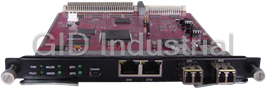
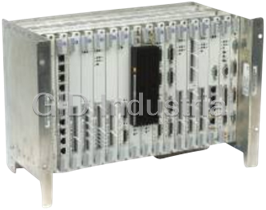
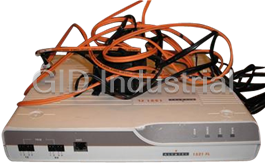



What they say about us
FANTASTIC RESOURCE
One of our top priorities is maintaining our business with precision, and we are constantly looking for affiliates that can help us achieve our goal. With the aid of GID Industrial, our obsolete product management has never been more efficient. They have been a great resource to our company, and have quickly become a go-to supplier on our list!
Bucher Emhart Glass
EXCELLENT SERVICE
With our strict fundamentals and high expectations, we were surprised when we came across GID Industrial and their competitive pricing. When we approached them with our issue, they were incredibly confident in being able to provide us with a seamless solution at the best price for us. GID Industrial quickly understood our needs and provided us with excellent service, as well as fully tested product to ensure what we received would be the right fit for our company.
Fuji
HARD TO FIND A BETTER PROVIDER
Our company provides services to aid in the manufacture of technological products, such as semiconductors and flat panel displays, and often searching for distributors of obsolete product we require can waste time and money. Finding GID Industrial proved to be a great asset to our company, with cost effective solutions and superior knowledge on all of their materials, it’d be hard to find a better provider of obsolete or hard to find products.
Applied Materials
CONSISTENTLY DELIVERS QUALITY SOLUTIONS
Over the years, the equipment used in our company becomes discontinued, but they’re still of great use to us and our customers. Once these products are no longer available through the manufacturer, finding a reliable, quick supplier is a necessity, and luckily for us, GID Industrial has provided the most trustworthy, quality solutions to our obsolete component needs.
Nidec Vamco
TERRIFIC RESOURCE
This company has been a terrific help to us (I work for Trican Well Service) in sourcing the Micron Ram Memory we needed for our Siemens computers. Great service! And great pricing! I know when the product is shipping and when it will arrive, all the way through the ordering process.
Trican Well Service
GO TO SOURCE
When I can't find an obsolete part, I first call GID and they'll come up with my parts every time. Great customer service and follow up as well. Scott emails me from time to time to touch base and see if we're having trouble finding something.....which is often with our 25 yr old equipment.
ConAgra Foods